Set up your Sonos ZP100
 Mobile device required
 Sonos S1 required
This article will guide you through setting up your ZP100. You can find more information on product features and specs in ZP100's product guide.
Before you start
- Place your ZP100 in your desired location and connect it to power.
- Download the Sonos S1 app for iOS or Android. The app will guide you through the set up process.
Set up a new Sonos system with ZP100
- Open the Sonos app for iOS or Android.
- Select Set up a new system, then create or sign in to your Sonos account.
- Select Continue, then choose Set up products.
- Follow the steps in the app to set up your ZP100 and add your content services.
Add ZP100 to your existing Sonos system
- Open the Sonos app for iOS or Android.
- From the Settings tab, select System, the choose Add Product.
- Follow the steps in the app to connect ZP100 to your Sonos system.


Problems during setup?
If your ZP100 is having trouble connecting during setup, check our “Product not found” article for some help.
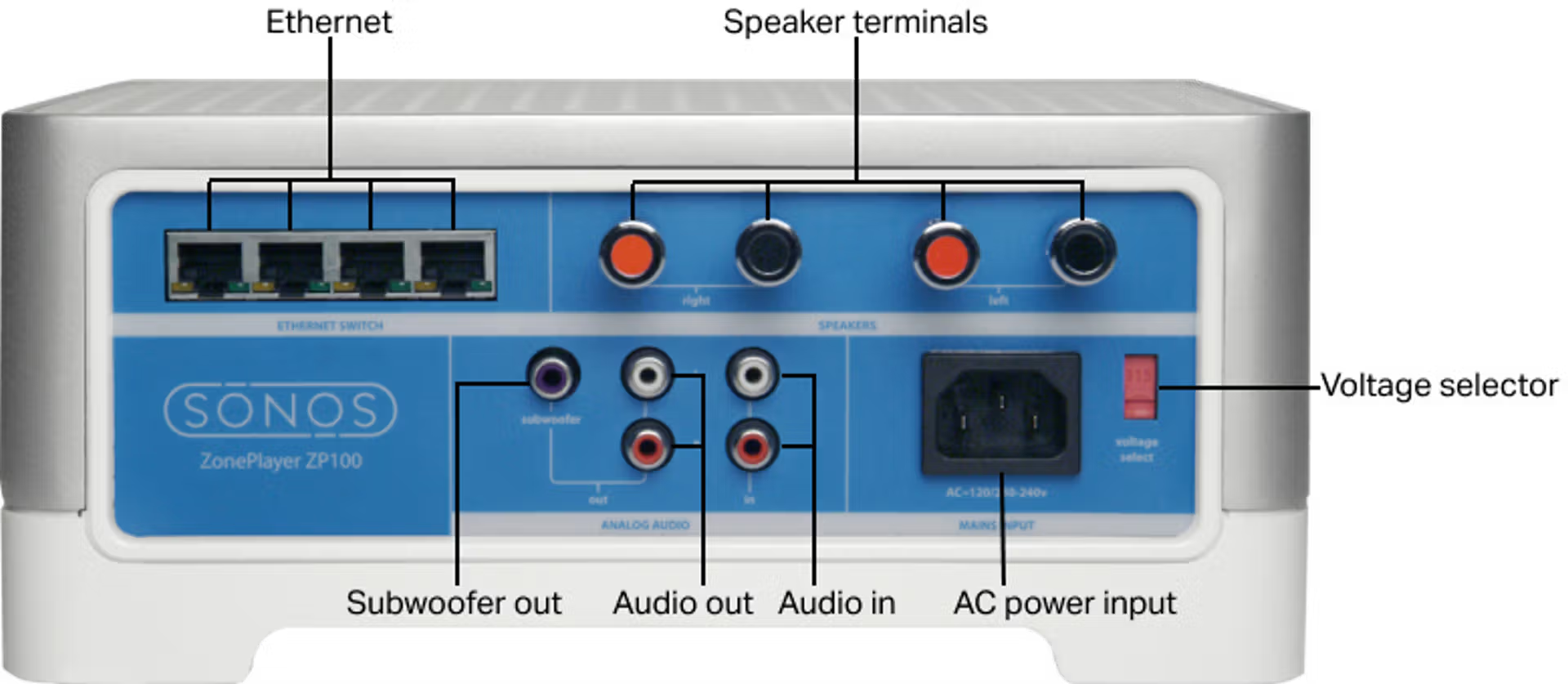
Audio inputs and outputs
Connect speakers
We recommend using a speaker wire gauge between 12 and 16. Runs of over 300ft are not recommended. Refer to our article on choosing a speaker wire gauge for more details.
- Use your thumb or finger to firmly push the spring-loaded speaker connector post inward to reveal the connection hole.
- Insert the stripped end of the speaker wire into the hole, then release. Repeat for the other speaker connections.
ZP100 works with traditional 8 ohm bookshelf speakers as well as pairs of 6 or 4 ohm speakers.
Speaker impedance
Watts per channel
8 Ohms
75 Watts
6 Ohms
112.5 Watts
4 Ohms
150 Watts
Please Note: Wattage is not a direct indicator of audio quality but represents required wattage for attached speakers.