Configure Kaspersky Internet Security to work with Sonos
Kaspersky Internet Security may block your computer from connecting to your Sonos system. Follow the steps below to make sure Kaspersky Internet Security is configured to allow the Sonos app to connect to your system.
1. Open Kaspersky Internet/Total Security by double clicking the Kaspersky logo.


- Windows: Located on the Taskbar in the bottom right corner of the desktop.
- Mac: Located on the Menu Bar in the top right corner of the desktop.
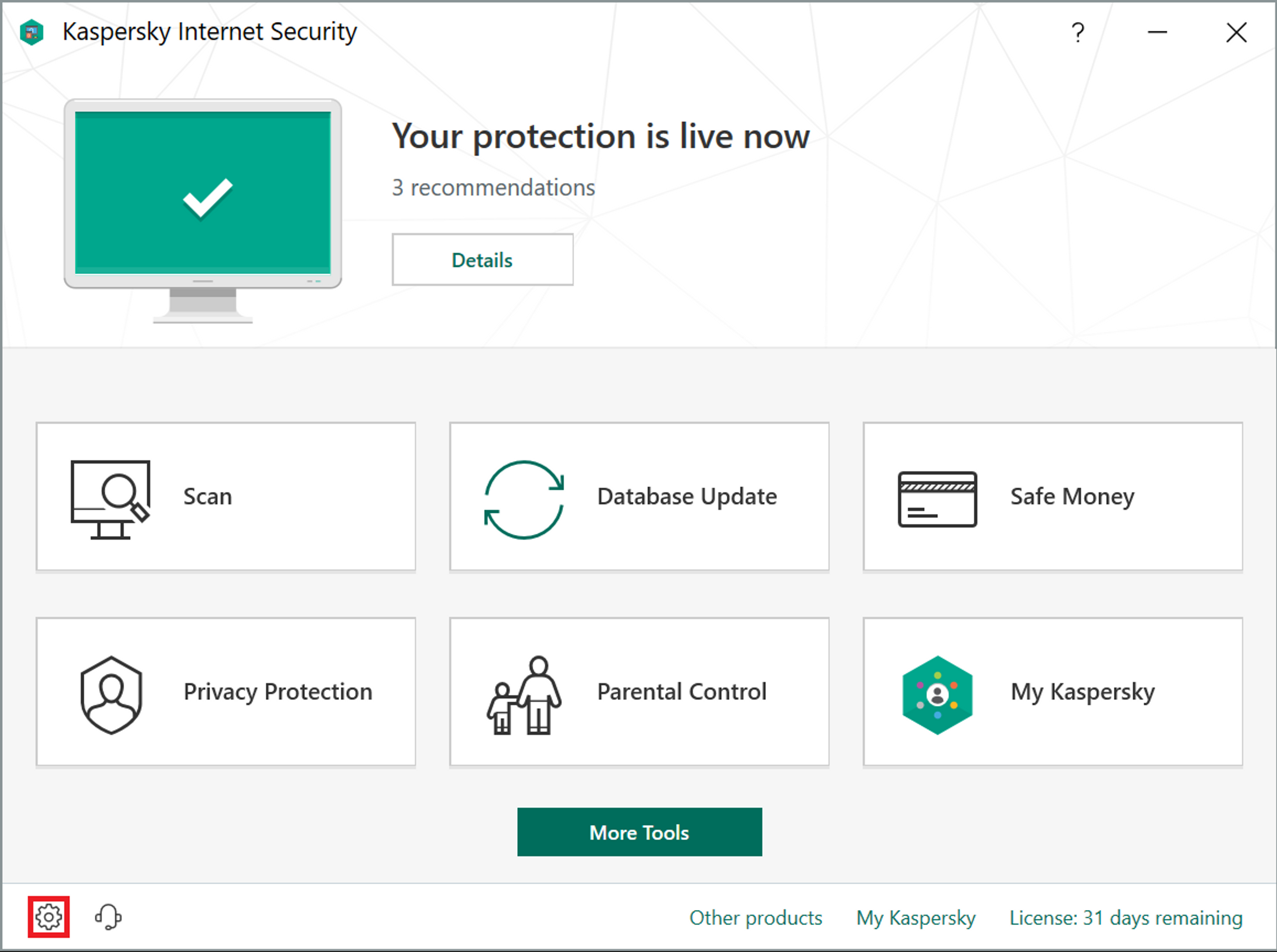
2. Click on the gear icon in the bottom left corner to access the settings.
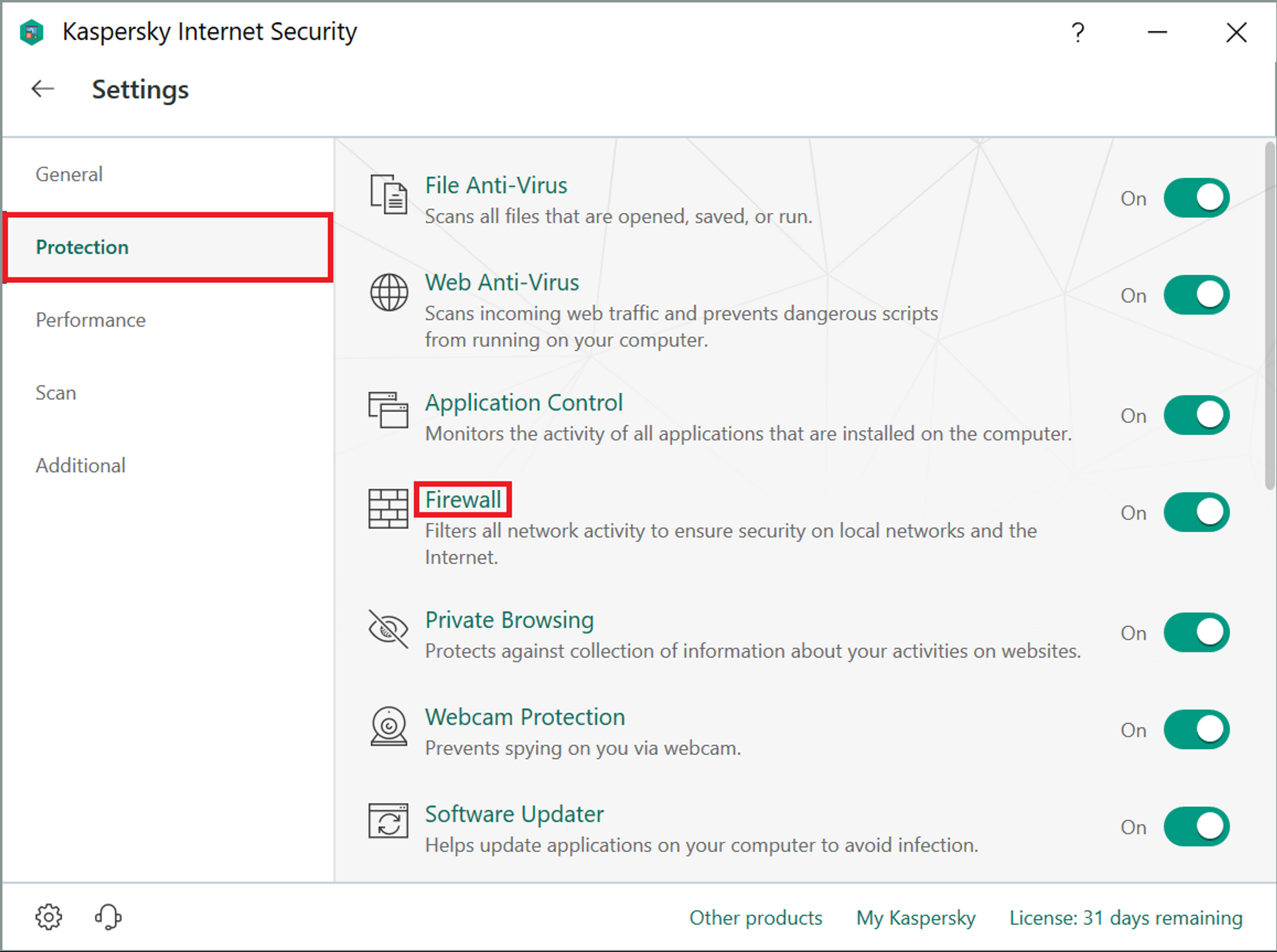
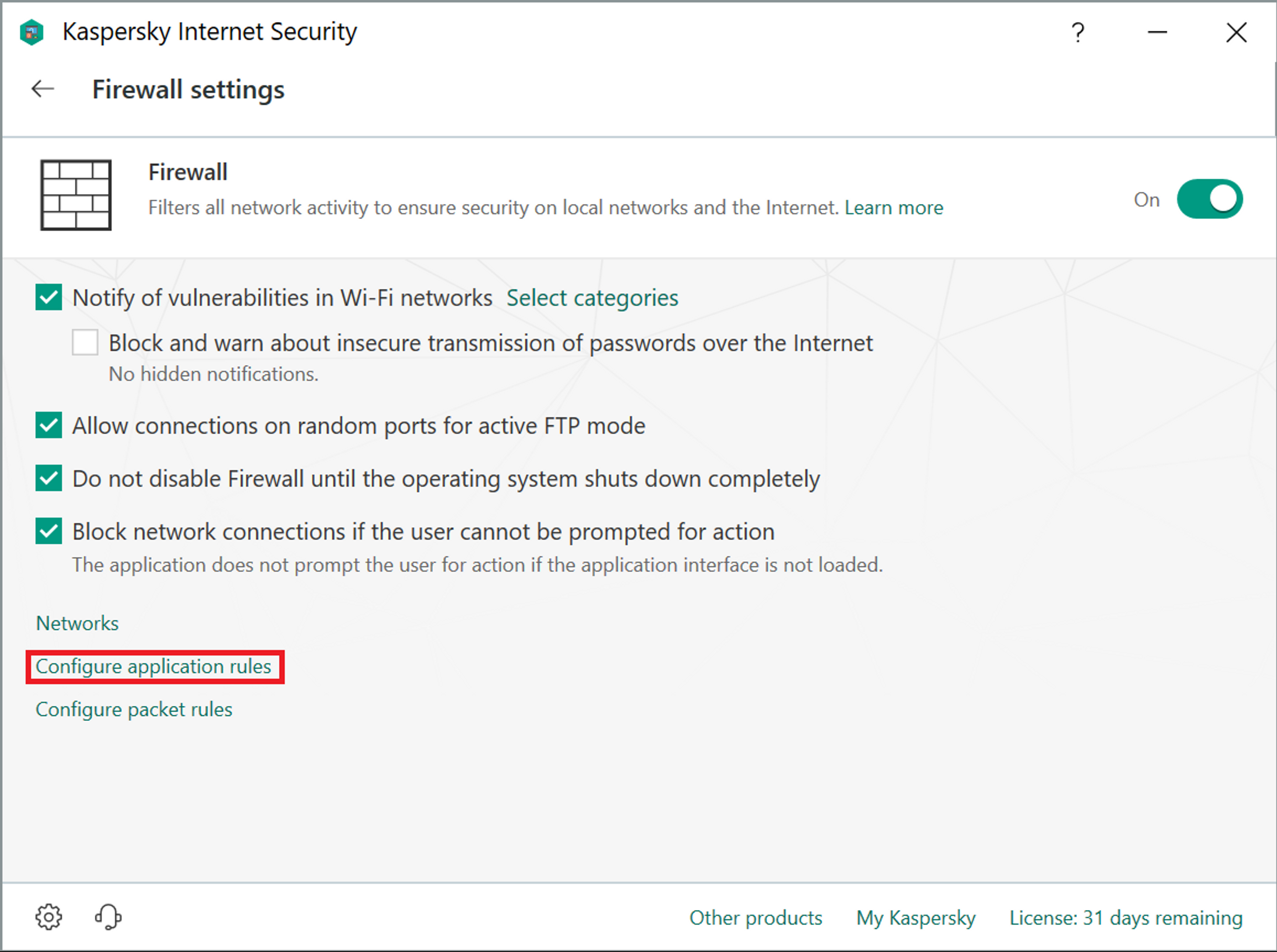
3. Click Protection and then select Firewall.
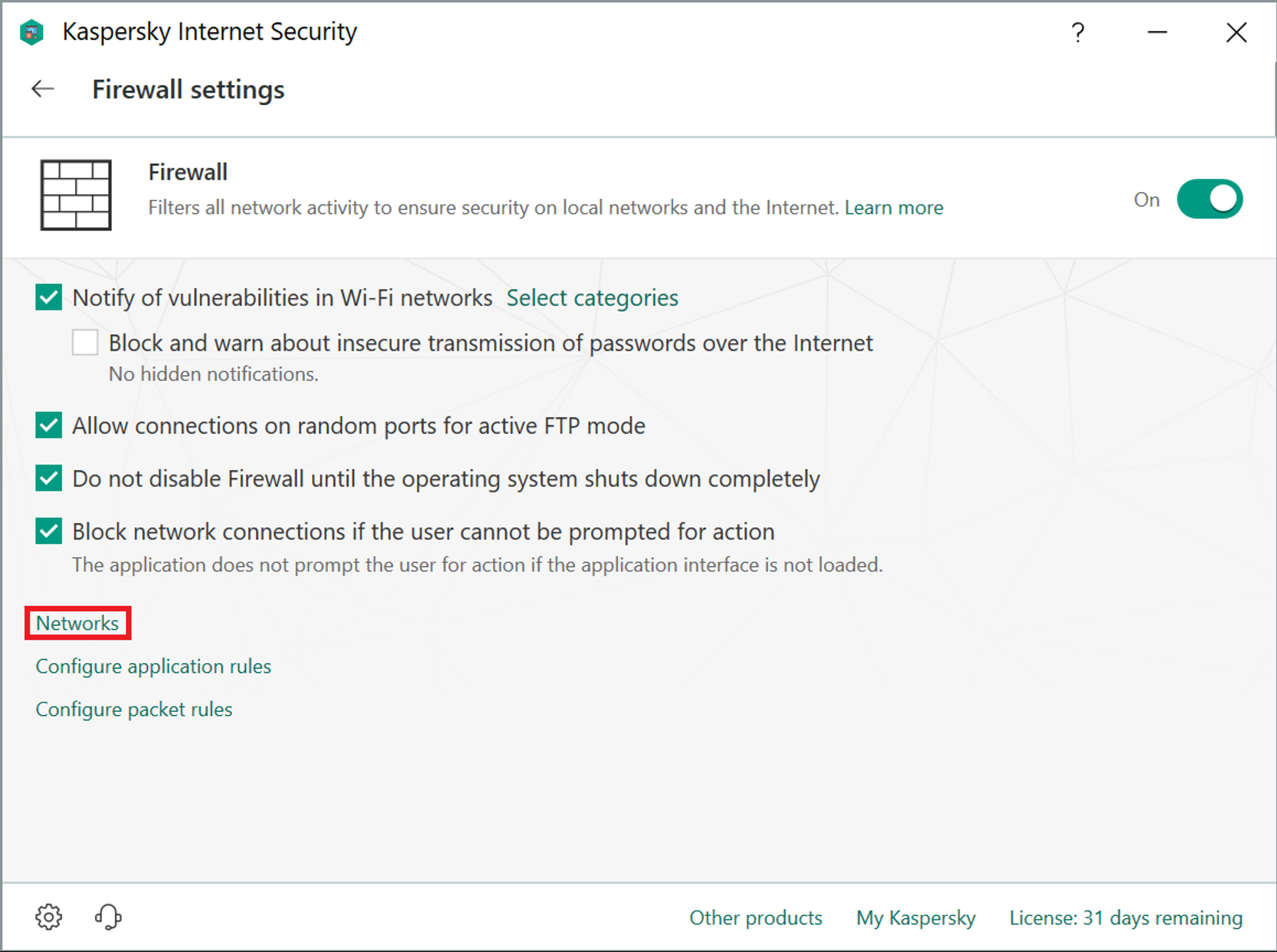
4. Click Networks.
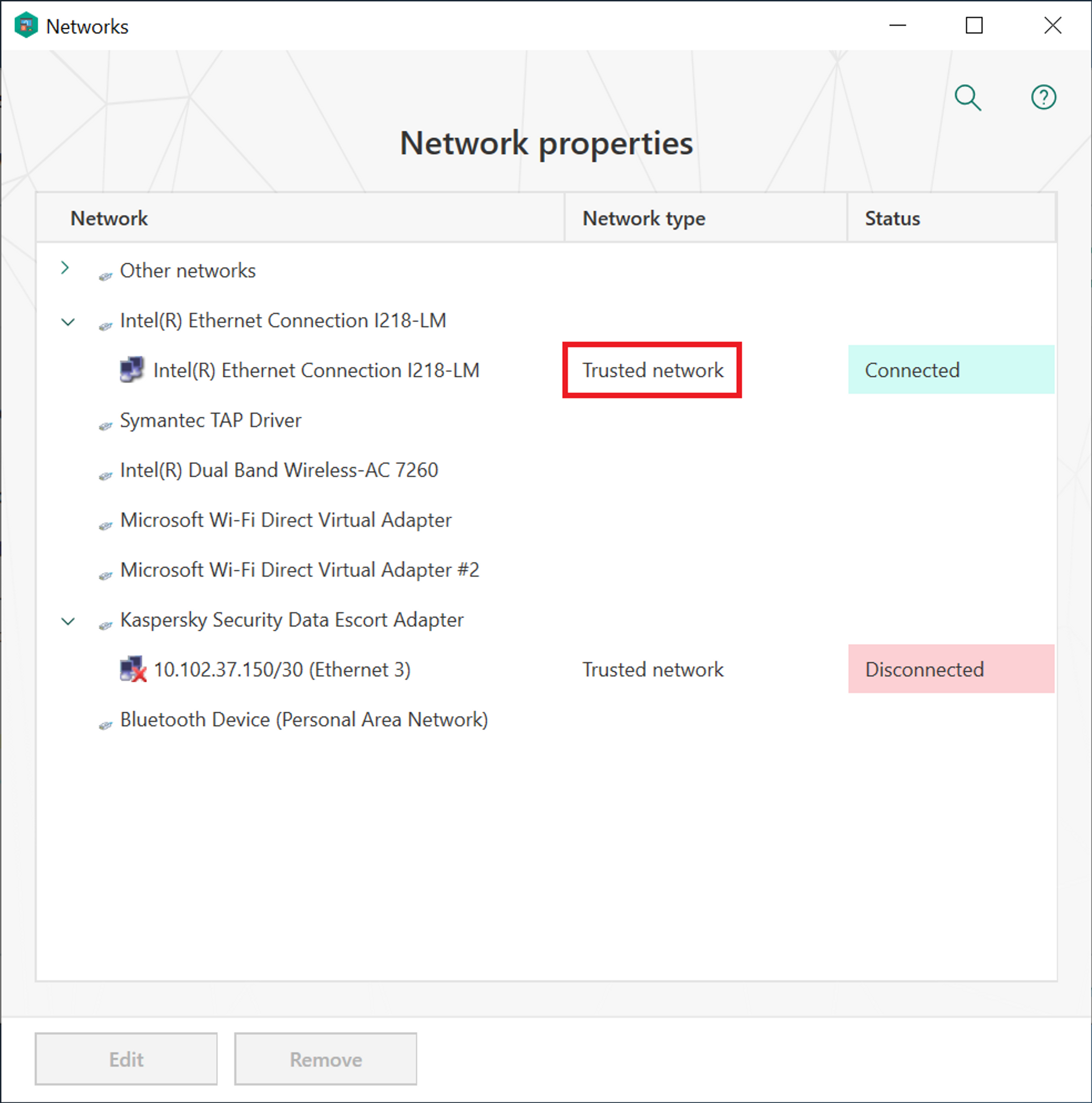
- Click the Network type next to your network interface (Ethernet and/or Wi-Fi)
- Select either Local network or Trusted network
5. Close the Network window and then select Configure application rules.
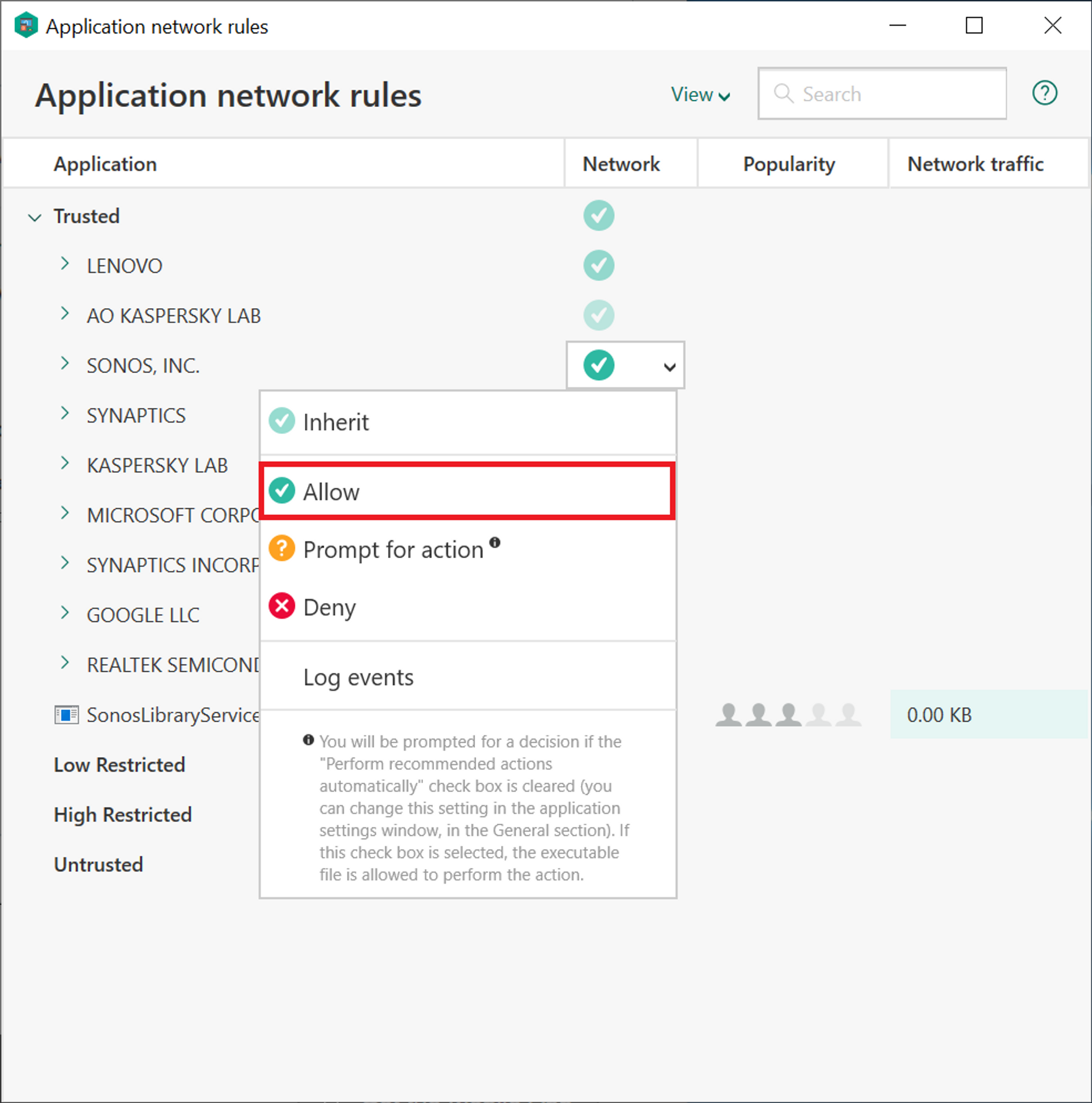
- Find SONOS, INC in the list of applications.
- Click the button in the Network column and set this value to Allow.
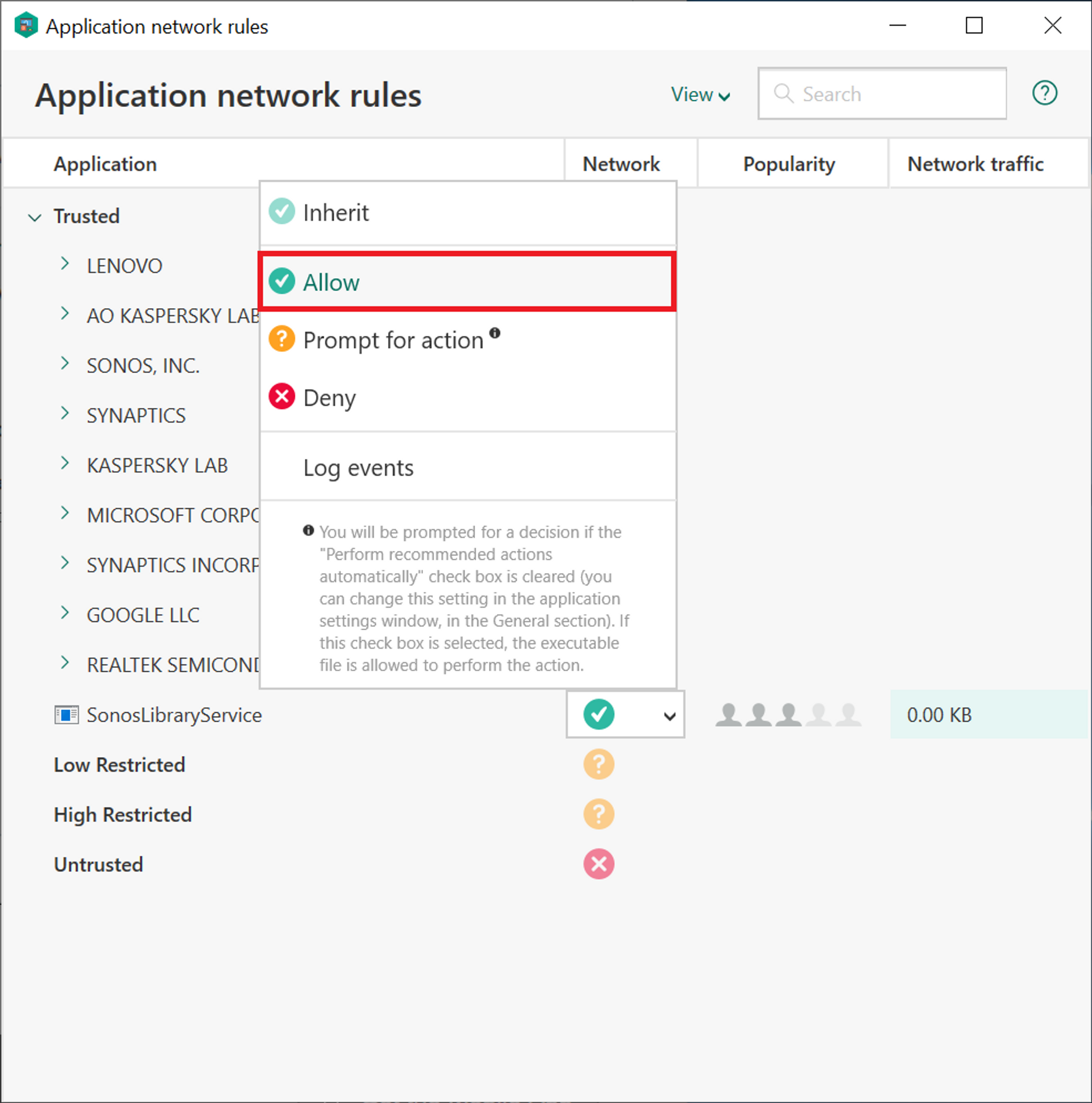
6. If you have added or are trying to add a music library, find SonosLibraryService in the list of applications and set it’s network permissions to Allow.
Kaspersky Internet/Total Security is now configured to work with Sonos.


