Get to know your Sonos Move

Learn more about Sonos Move's essential features like playback controls, Bluetooth pairing, grouping, and charging.


Playback controls
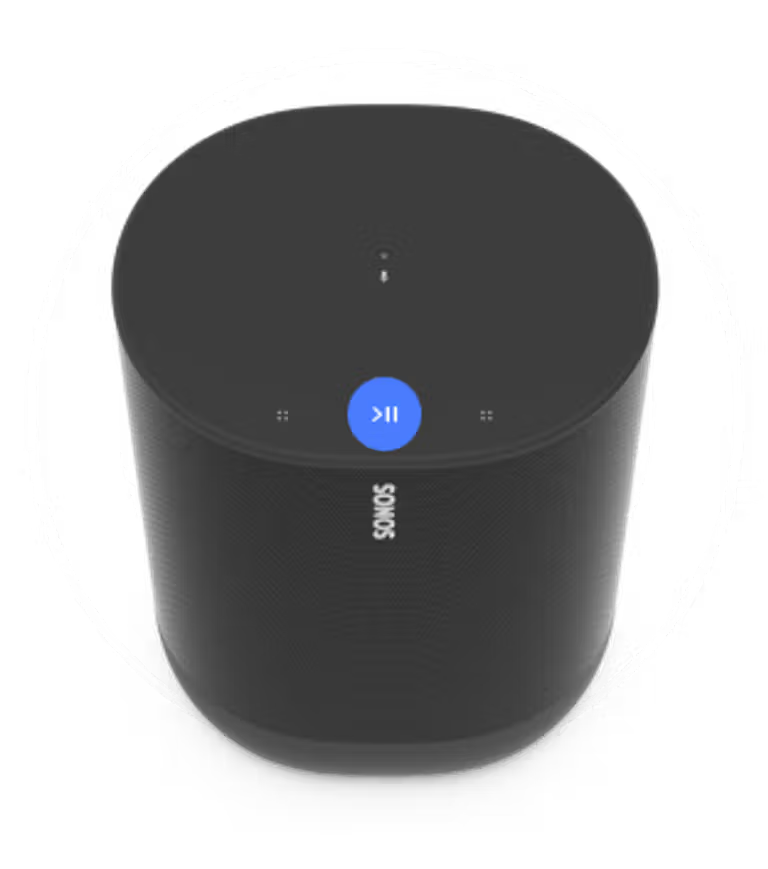
Black Sonos Move top with the play/pause button highlighted

Press to play or pause audio.

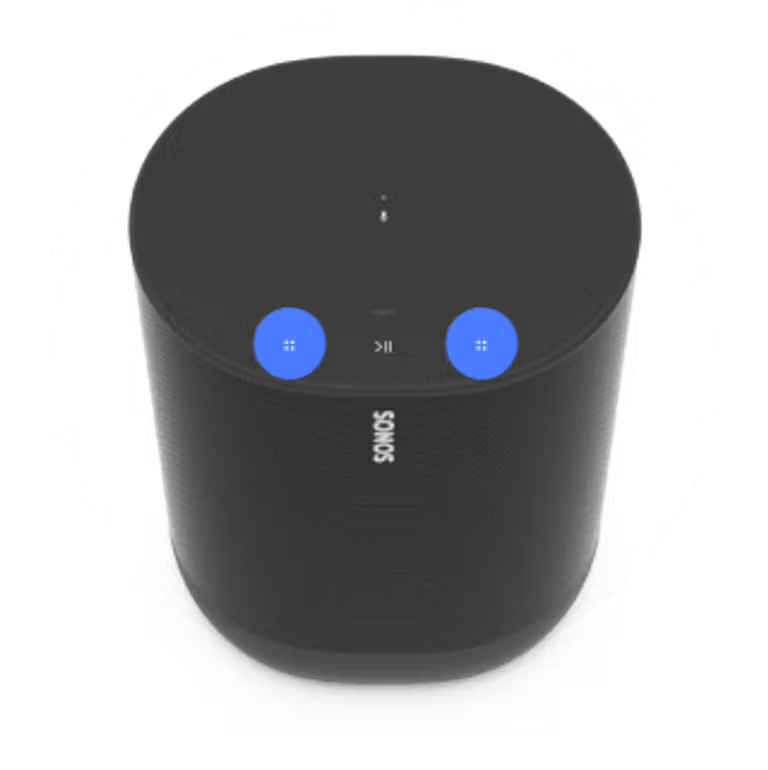
Black Sonos Move top showing the outermost touch controls highlighted in blue

Press to change the volume.

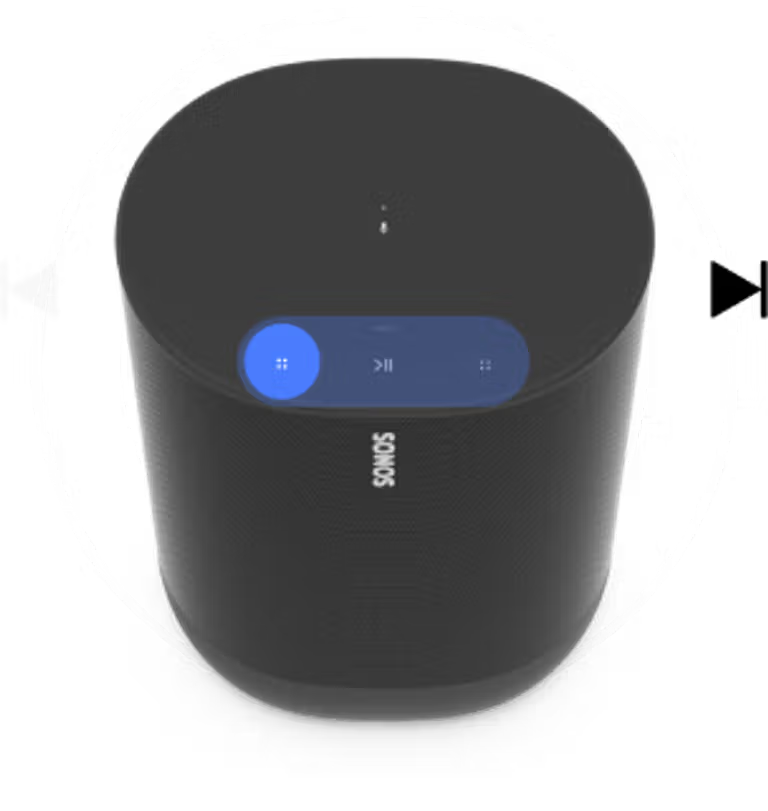
Black Sonos One top with controls highlighted and a skip-forward arrow for next track

Swipe forward to play the next track.
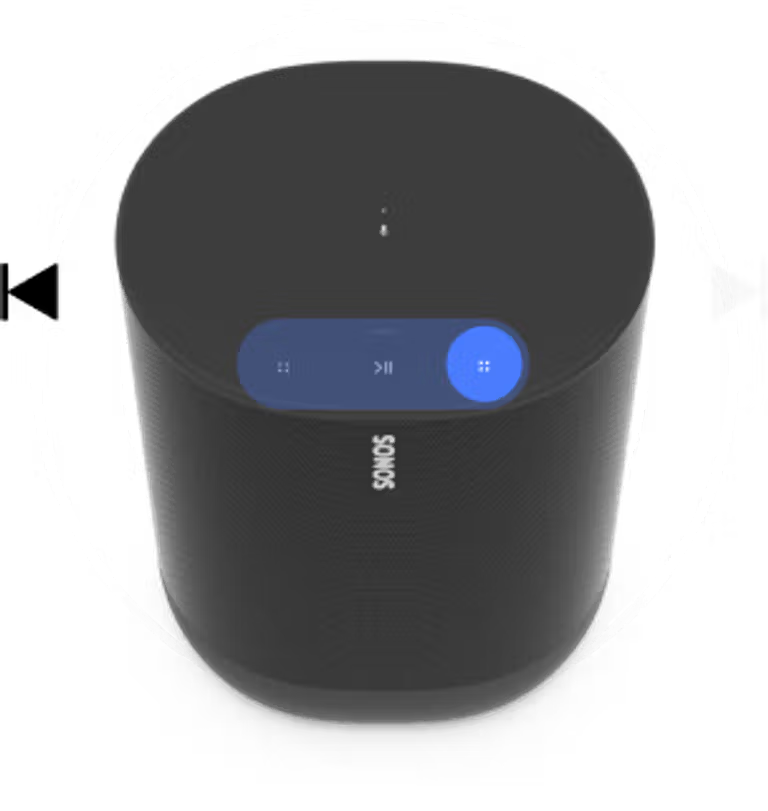
Black Sonos One top with controls highlighted and a skip-back arrow for previous track

Swipe back to play the previous track.

Bluetooth
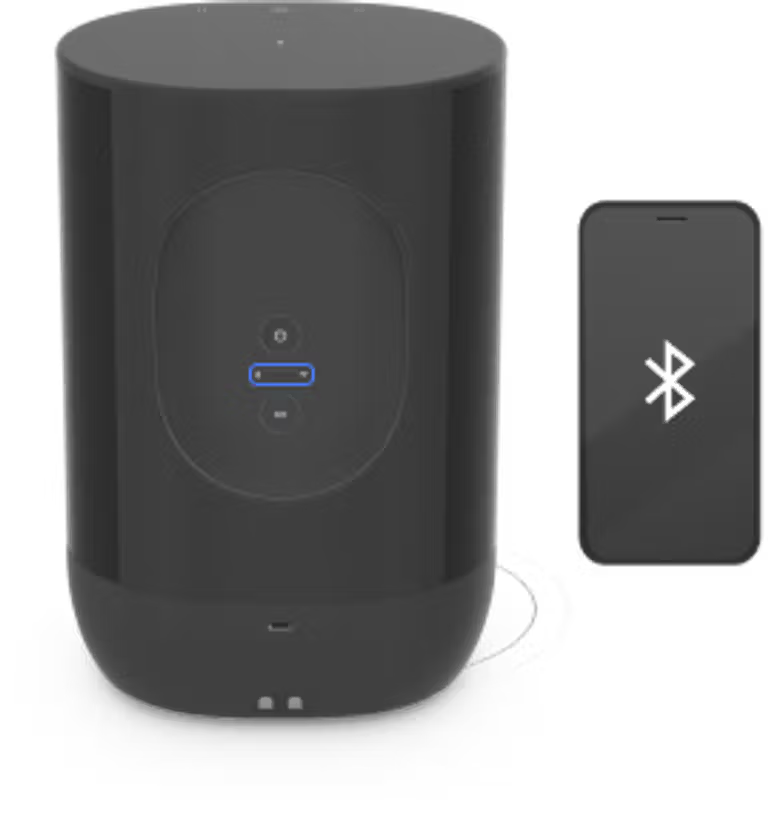

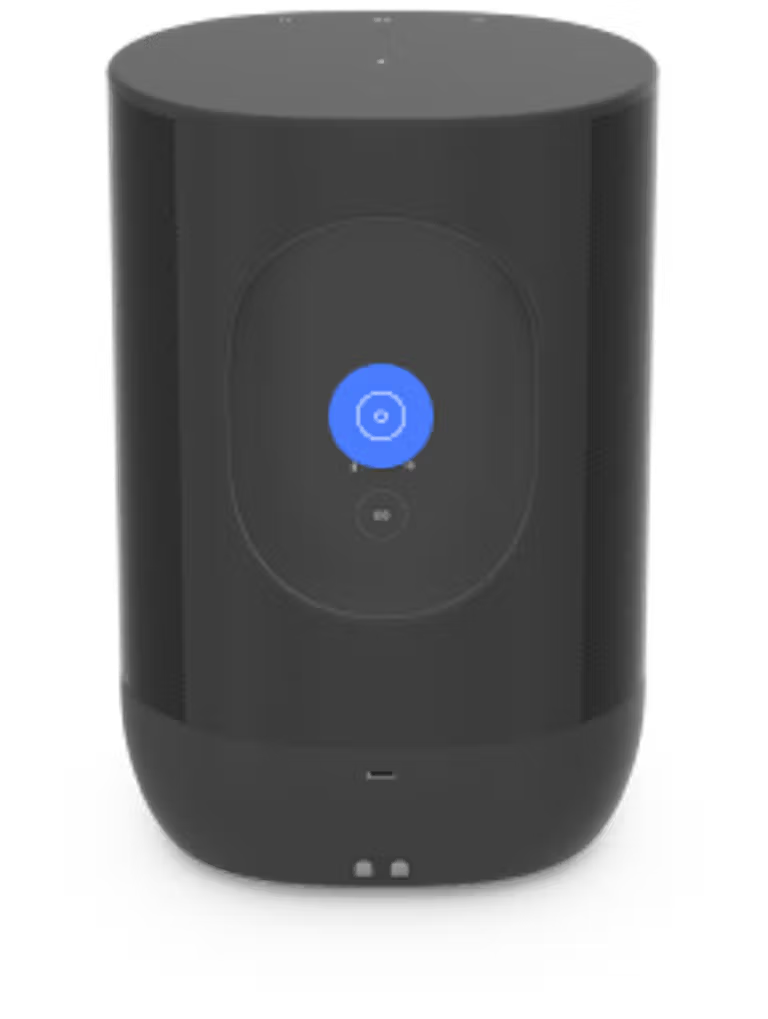
Black Sonos Move from rearwith Bluetooth button highlighted next to a phone showing the Bluetooth icon for pairing

To pair a device, press and hold the Bluetooth button until you hear the pairing chime.
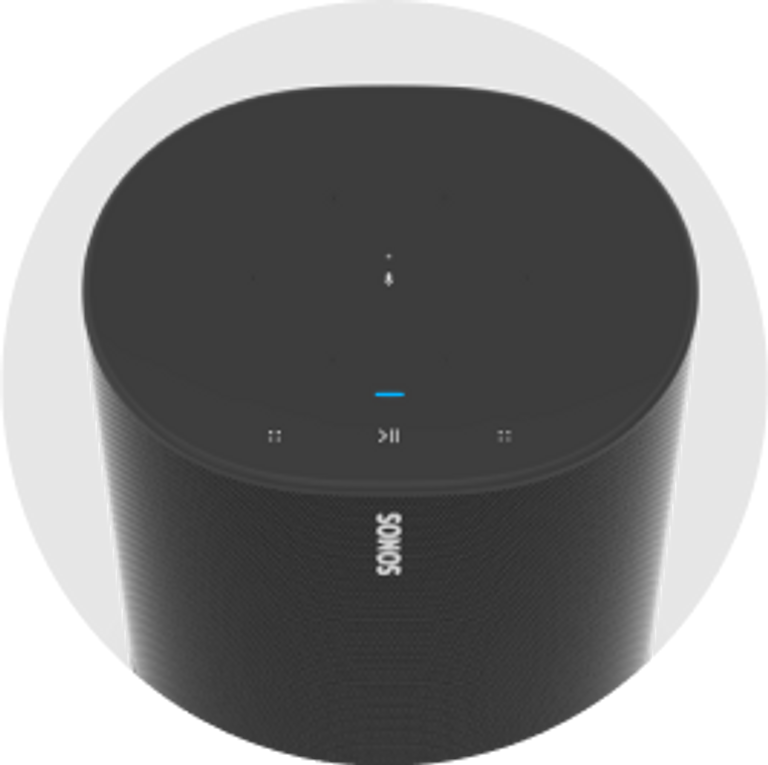
Black Sonos Move top showing the status light lit blue to indicate Bluetooth mode

Blinking blue: Ready to connect
Solid Blue: Connected to device


Voice

Add a voice assistant to Move and control your Sonos system with voice. See our article on adding a voice assistant for more information.
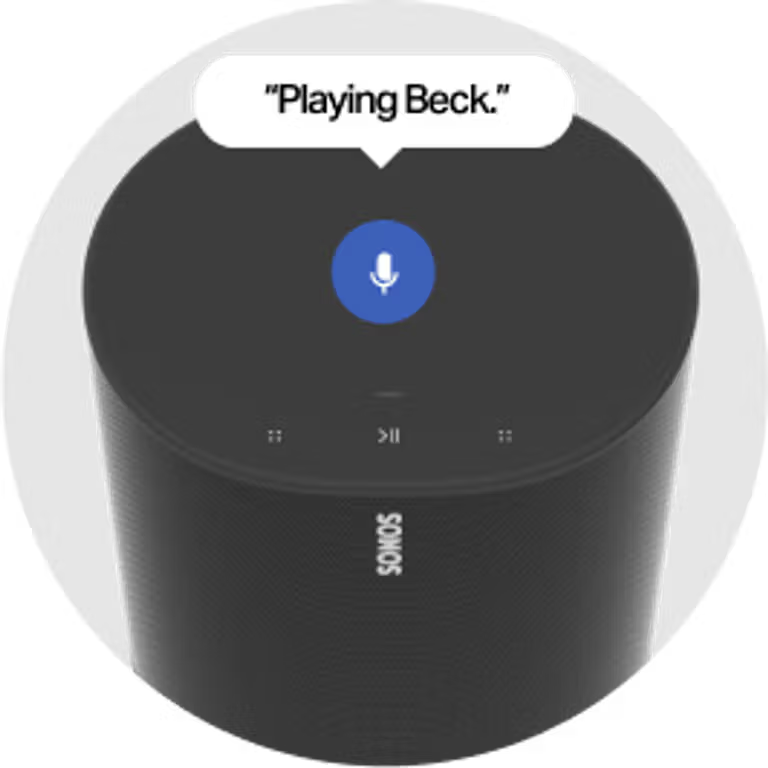
Black Sonos Move with voice assistant mic active and speech bubble reading Playing Beck


Grouping

Press and hold to easily group Sonos products to play the same content. You’ll hear a confirmation chime.
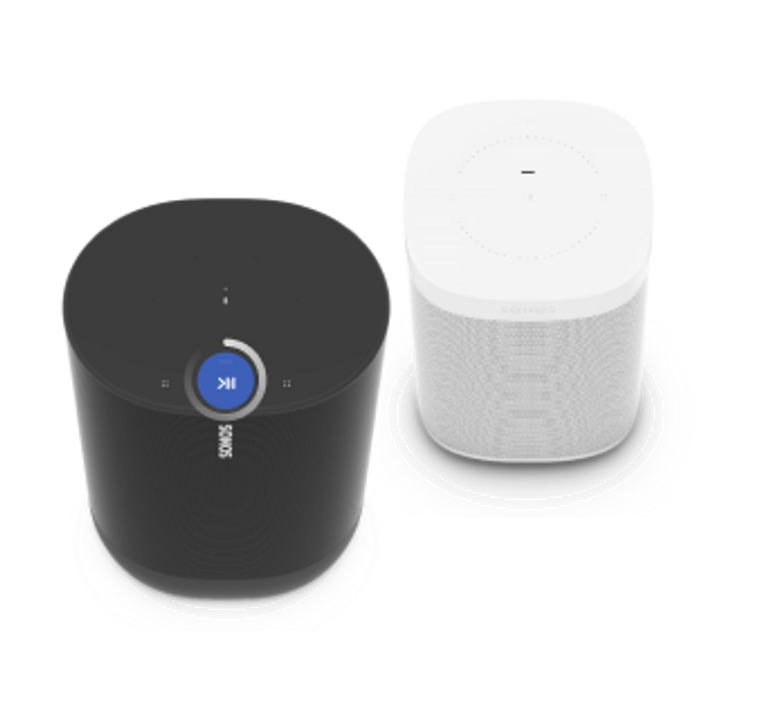
Black Sonos One with Play/Pause button highlighted next to a white Sonos One illustrating grouping speakers


Battery and charging


Black Sonos Move rear showing the power button highlighted in blue

Press and release to put Move into sleep mode.
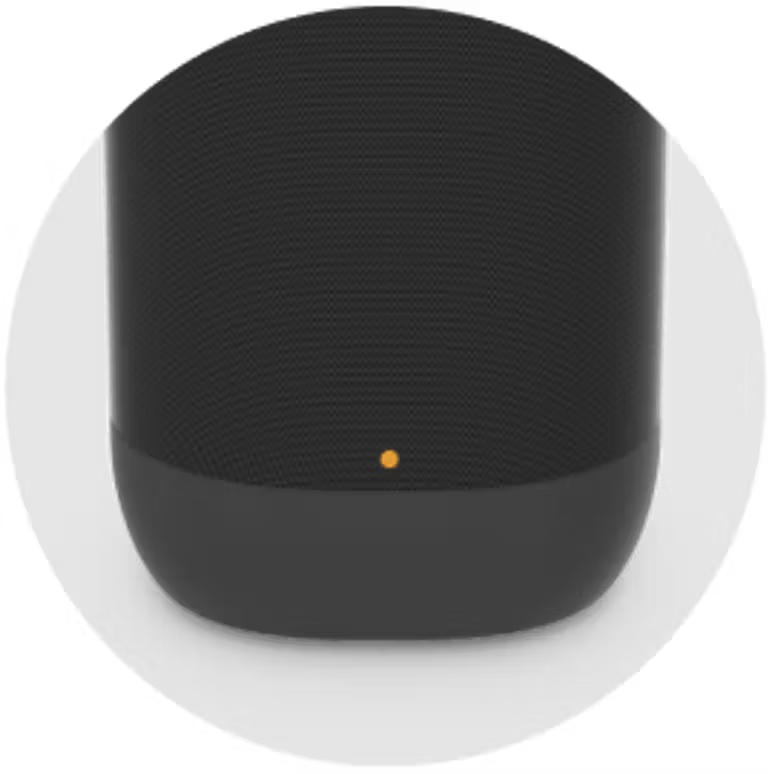
Black Sonos Move with orange status light glowing on the front near the base

The battery light blinks amber when it’s time to recharge.
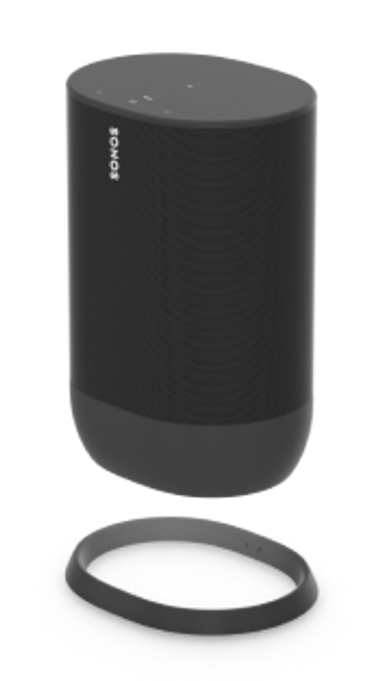
Black Sonos Move hovering above its charging base to show charging contacts

Set Move on the charging base for easy recharging.

Still need help?

Our technicians can help over the phone or with a live chat. You can also ask questions and find answers with other Sonos owners in our Sonos Community.