Noise Control settings for Sonos headphones
This article goes over the different Noise Control options available on Sonos Ace and Sonos Ace Ultra.
Noise Control modes
Noise Canceling


Enables Active Noise Cancellation (ANC), blocking out external sound in your environment.
Adaptive Cancellation can also be enabled to improve the Active Noise Cancellation experience when Sonos headphones don’t fit perfectly.
Aware Mode

Blends some of the external ambient sound with your music and audio so you can stay in tune with the world around you.
Off

Disables both Noise Canceling and Aware Mode.
Changing Noise Control modes
Using button controls
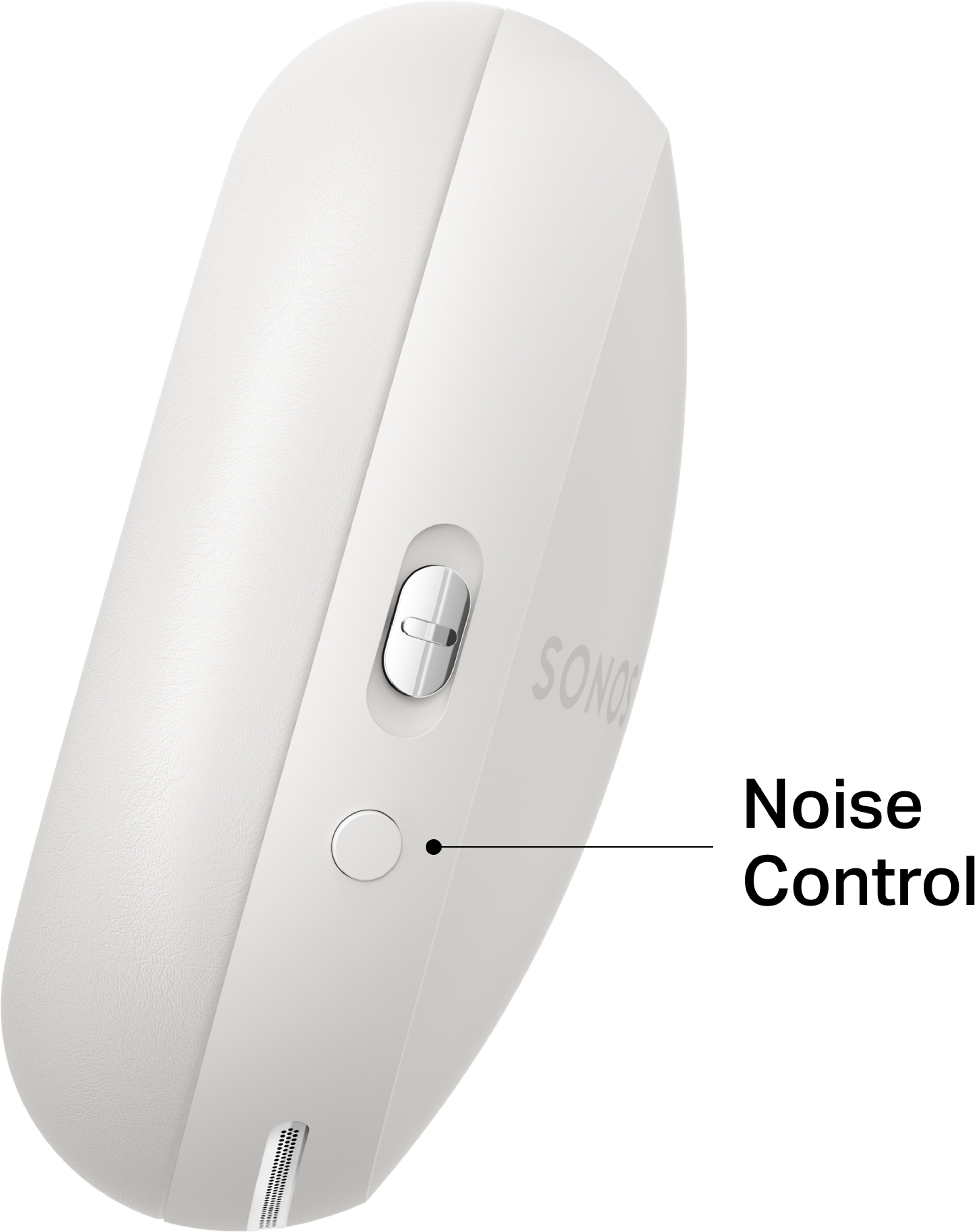
You can cycle through different Noise Control modes using the Noise Control button located on the right ear cup underneath the Content Key.
By default, the Noise Control button will cycle between Noise Canceling and Aware Mode. You can customize the modes cycled by this button in Sonos headphones settings in the Sonos app.
In the Sonos app
When Sonos Ace or Sonos Ace Ultra is selected in the System view, you can select Noise Control to cycle through all Noise Control modes.
You can also change your current Noise Control mode in the settings menu for Sonos headphones.
- Go to the Settings menu and select your Sonos headphones in the Headphones section.
- Under Noise Control, select Noise Canceling, Aware Mode, or Off.

Personalize the Noise Control button
In the Sonos app, you can change which modes Sonos Ace and Sonos Ace Ultra will cycle through when you press the Noise Control button. To change these settings, Sonos headphones must be set up in the Sonos app and connected to your iOS or Android device.
- Go to the Settings menu and select your Sonos headphones in the Headphones section.
- Under Hardware Controls, select Noise Control.
- Select each desired mode from the list. At least two modes must remain selected.
Noise Control customizations
In the Sonos app, you can fine-tune various Noise Control settings to suit your needs. To change these settings, Sonos Ace and Sonos Ace Ultra must be set up in the Sonos app and connected to your iOS or Android device.
Sidetone allows you to hear your own voice more clearly when using Active Noise Cancellation during phone calls.
Adaptive Cancellation improves your Active Noise Cancellation experience when Sonos headphones don’t fit perfectly.
- Go to the Settings menu and select your Sonos headphones in the Headphones section.
- Under Hardware Controls, select Noise Control.
- Select Customizations, and toggle Sidetone or Active Cancellation on or off.


