Control Sonos via iOS Live Activity
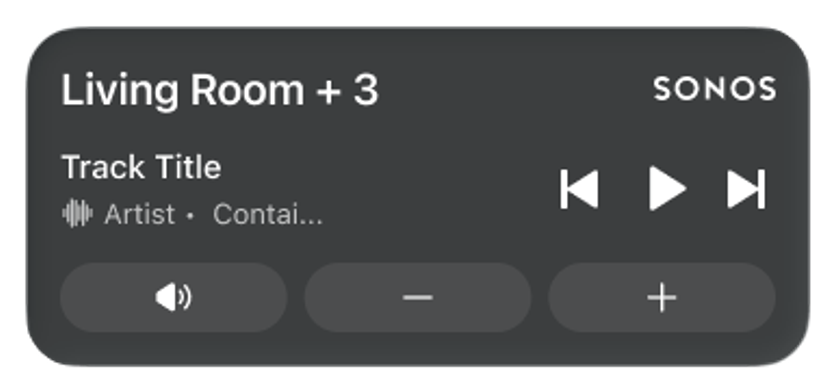
Targeting release with App 88 on August 11th, 2026, Sonos is re-introducing the experience of viewing Sonos playback from the iOS lockscreen, but in an entirely new way. This feature allows iOS users to opt-in to enabling an iOS Live Activity that will display what’s playing on the current room/group, and provide basic controls like Play/Pause, Skip, Previous/Next, Volume up/down, and Mute.
iOS Live Activity can be swiped away from the lock screen at any time.
Before you start
- Ensure your iOS device is operating on iOS 18+
- Update to the latest version of the Sonos app
- Be logged in as the Sonos system owner
Enable playback controls via iOS Live Activity
- Open the Sonos app for iOS.
- Navigate to Account, then select App Preferences.
- From here, enable Live Activity.
Live Activity will display after starting playback to a Sonos product or group. The first time Live Activity appears, iOS will ask for permission to Allow Live Activity. We recommend selecting Always Allow.
This permission can also be managed in the iOS settings app:
- From iOS settings, navigate to Apps, then select Sonos, then Live Activities.
- Set both Allow Live Activities and More Frequent Updates to On.
Live Activity from the iOS Dynamic Island

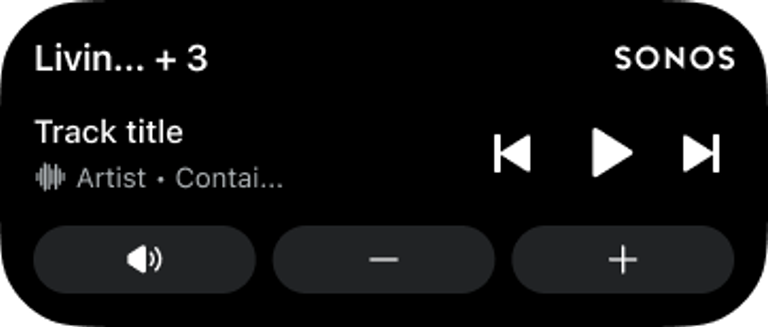
Customers using iPhone 14 Pro or newer iOS devices may also be able to view Live Activity from the Dynamic Island if supported by their iPhone model. The Dynamic Island is a pill-shaped display area at the top of the screen where the front-facing camera is.
The left side of the Dynamic Island will show bars indicating playback, while the right side will show the Sonos logo in a circle.
- The Dynamic Island appearance may differ slightly if other apps on the iOS device are also utilizing a Live Activity.
Tapping the Dynamic Island while the Sonos Live Activity is enabled will open the Sonos app. Pressing and holding the Dynamic Island will open the Live Activity controls. This can be done at any time, allowing for easy Sonos control while browsing other apps or screens.
Live Activity from your Apple Watch and CarPlay
When the Sonos Live Activity is enabled and content is playing, a connected Apple Watch or CarPlay experience will display a simple Sonos activity, without showing what’s playing or providing any playback controls. If you do not wish to see this, you can swipe away the Live Activity on your phone and it will disappear from your Watch and CarPlay.
Additional details
- While the iOS Live Activity can be viewed from your Lock Screen, you must first unlock your iPhone with FaceID or a Passcode before being able to make playback changes.
- The last room that you selected in the Sonos app will be displayed in the Live Activity. To change the room, select another room in the Sonos app and begin playing audio.
- If your iOS device disconnects from your wireless network or the Sonos app is force closed, you may need to relaunch the Sonos app in order for the Live Activity to reappear.
- The Live Activity will be removed automatically if content is stopped or paused for longer than 15 minutes.


