Listen to your turntable on Sonos
This article will show you what you need to connect a turntable to Sonos to listen to your vinyl record collection.
Before you start
- You will need a Sonos product that can accept a line-in connection through a line-in port or a USB-C port. Our products that support this are listed in our Line-In article.
- Check if your turntable has a built-in preamp like the Pro-Ject T1 Phono SB Turntable. If your turntable does not have a built-in phono preamp, you will need to first connect your turntable to a phono preamp, and then connect the phono preamp to Sonos.
Connect your turntable to Sonos
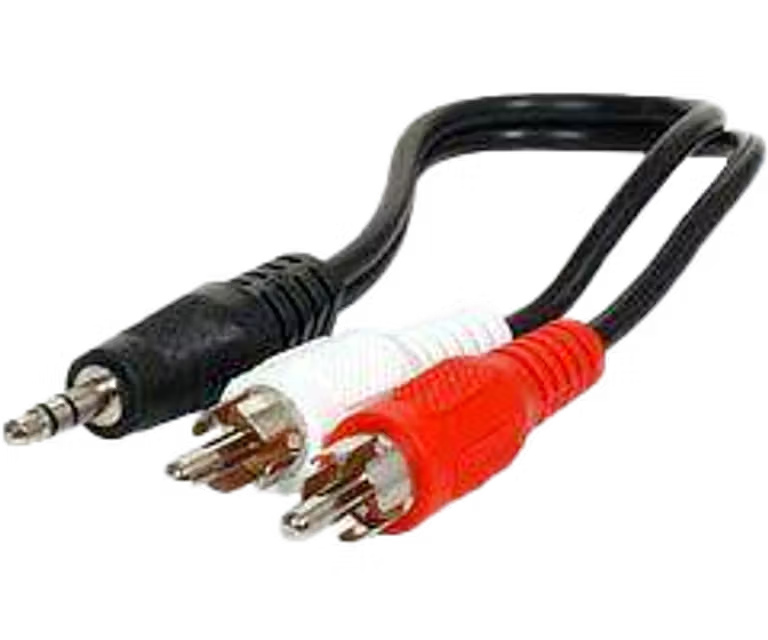
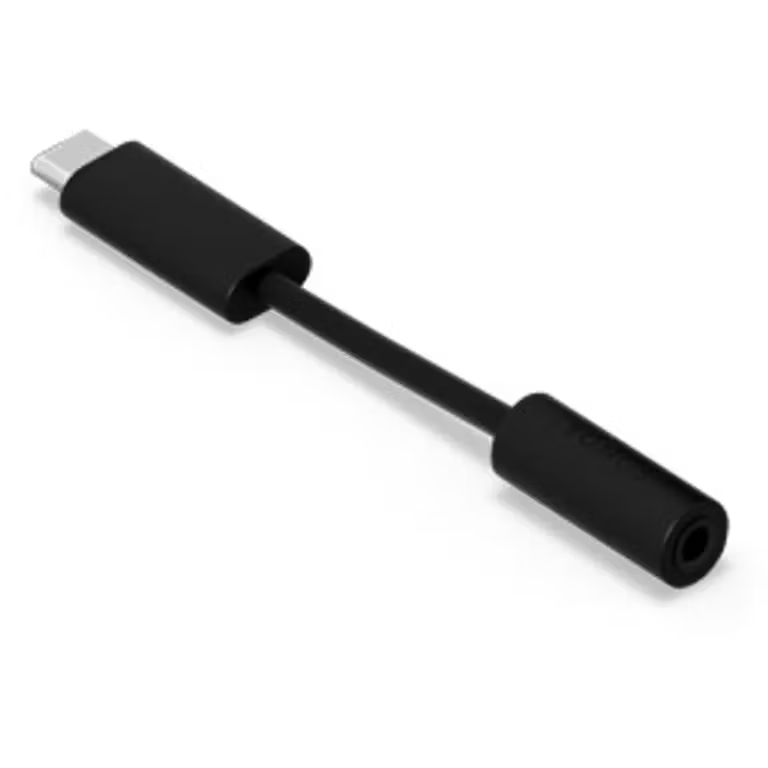
To connect a turntable to Sonos, you’ll need an RCA or RCA to 3.5 mm cable. Some Sonos products also require the use of a Sonos Line-In Adapter, which converts a 3.5 mm connection to USB-C. Follow the instructions below to know which cable you need and how to connect it.
RCA
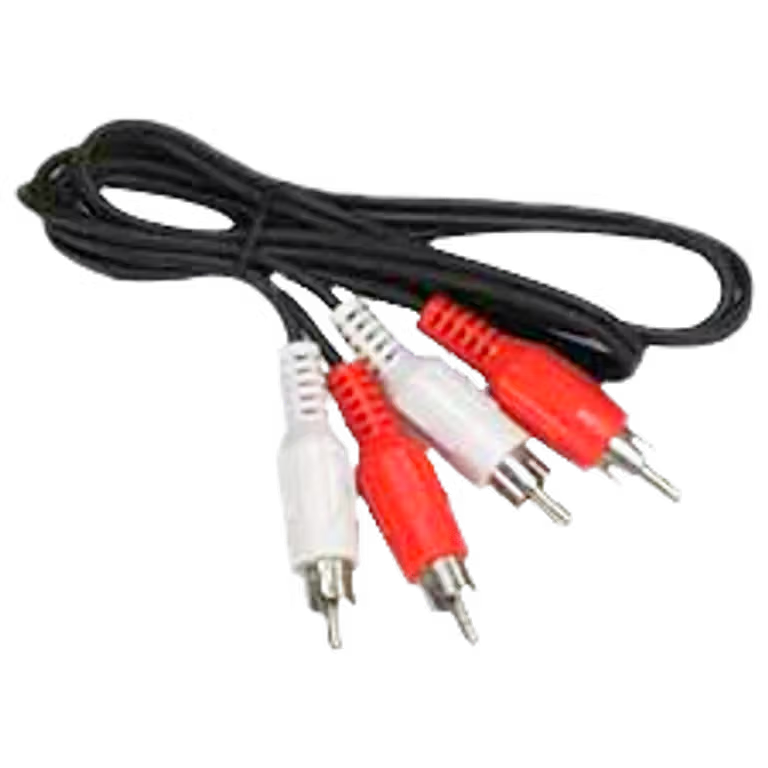
RCA to 3.5mm
Sonos Line-In Adapter
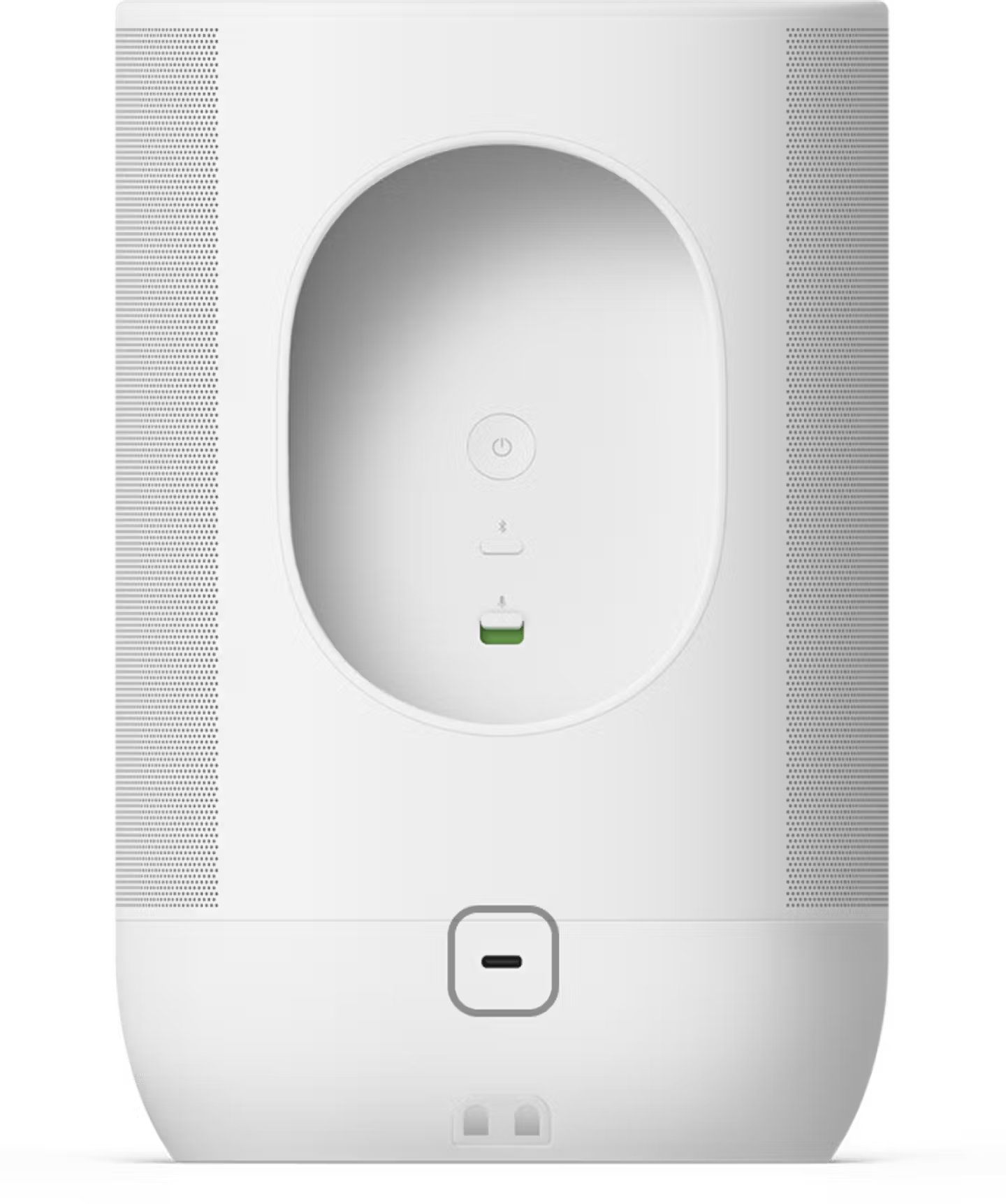
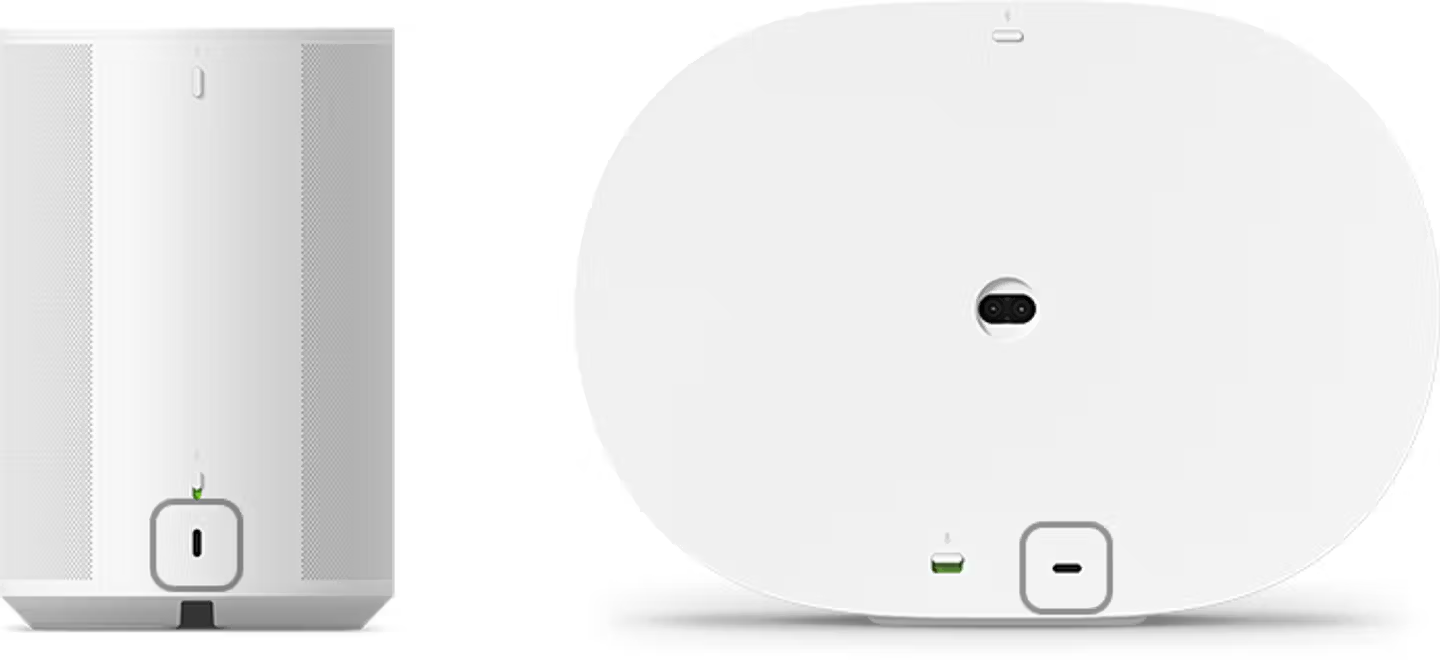
Move 2
Move 2 requires a Sonos Line-In Adapter as well as an RCA to 3.5 mm cable.
Connect an RCA to 3.5 mm cable to the Sonos Line-In Adapter, then plug the adapter into the USB-C port on the back of your Move 2. Once the adapter is connected, plug the split end of the cable into the L/R audio outputs on the back of your turntable or preamp.
Era 100 and Era 300
Era 100 and Era 300 require a Sonos Line-In Adapter as well as an RCA to 3.5 mm cable.
Connect an RCA to 3.5 mm cable to the Sonos Line-In Adapter, then plug the adapter into the USB-C port on the back of the Era 100 or Era 300. Once the adapter is connected, plug the split end of the cable into the L/R audio outputs on the back of your turntable or preamp.
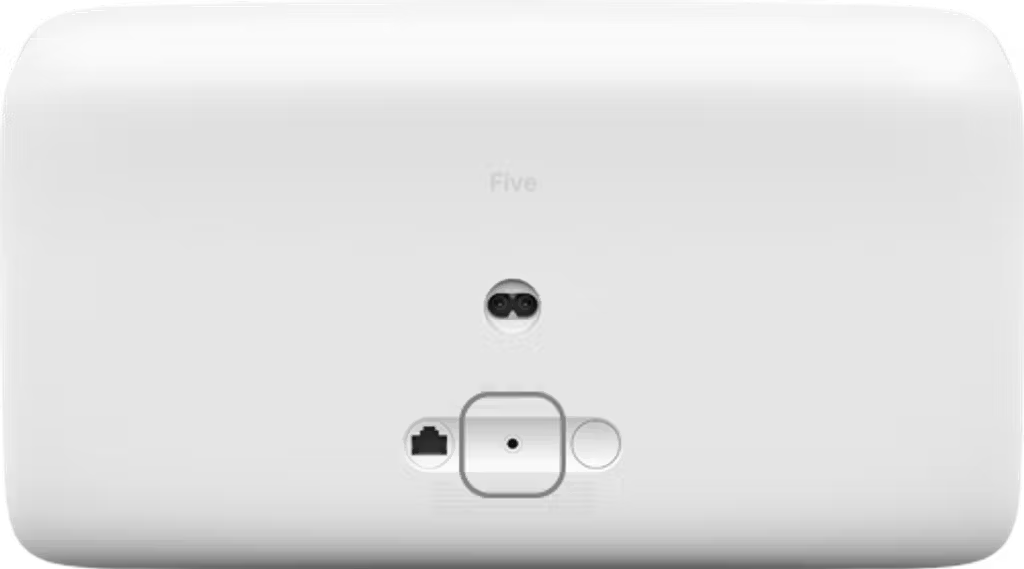
Five and Play:5
Plug the single end of an RCA to 3.5 mm cable into the line in port of the Five or Play:5 and plug the split end into the L/R audio outputs on the back of your turntable or preamp. If your turntable has a built-in RCA cable, you will need an RCA to 3.5 mm adapter.
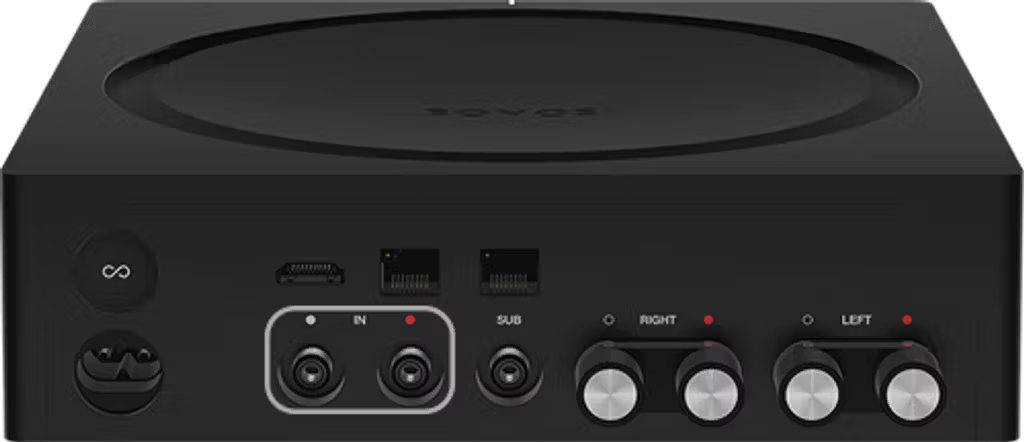
Amp and Connect:Amp
Plug one end of an RCA cable into your turntable or preamp, and plug the other end into the RCA input labeled IN on the back of your Amp or Connect:Amp.
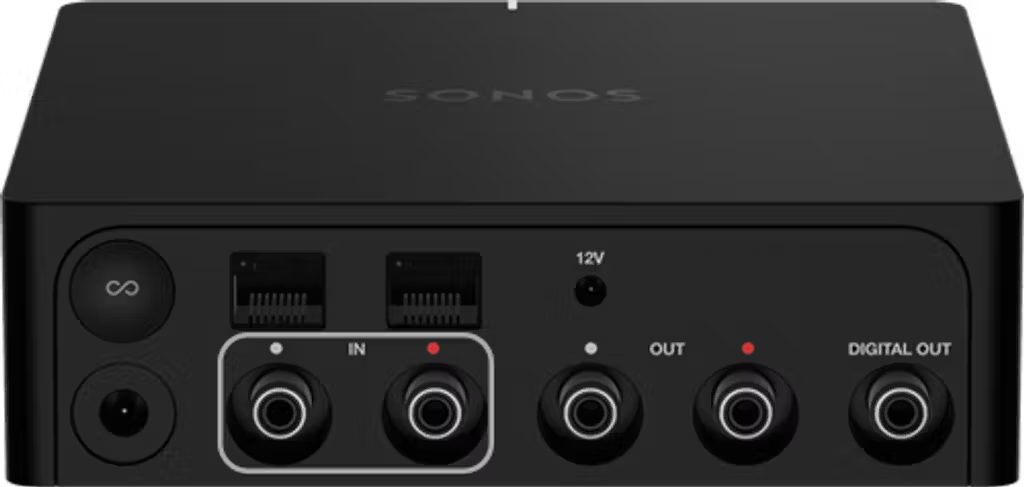
Port and Connect
Plug one end of an RCA cable into your turntable or preamp, and plug the other end into the RCA input labeled IN on the back of your Port or Connect.
Start playback
Start playing a record on your turntable, then open the Sonos app and follow the instructions below to manually begin playing line-in audio.
You can also set up Autoplay so your Sonos system knows to switch to line-in mode as soon as you play a record.
Sonos app for iOS or Android


From the Home screen, go to Your Sources > Line-In, then select the line-in source name.


Sonos S1 Controller app for iOS or Android


Go to Browse > Line-In, then select the line-in source name.


