Play Line-In on your Sonos Beam Ultra
This article will guide you through setting up a line-in connection on your Beam Ultra. Line-in allows you to connect a device that has an audio output (such as a CD player or turntable) to play out of your Sonos products.
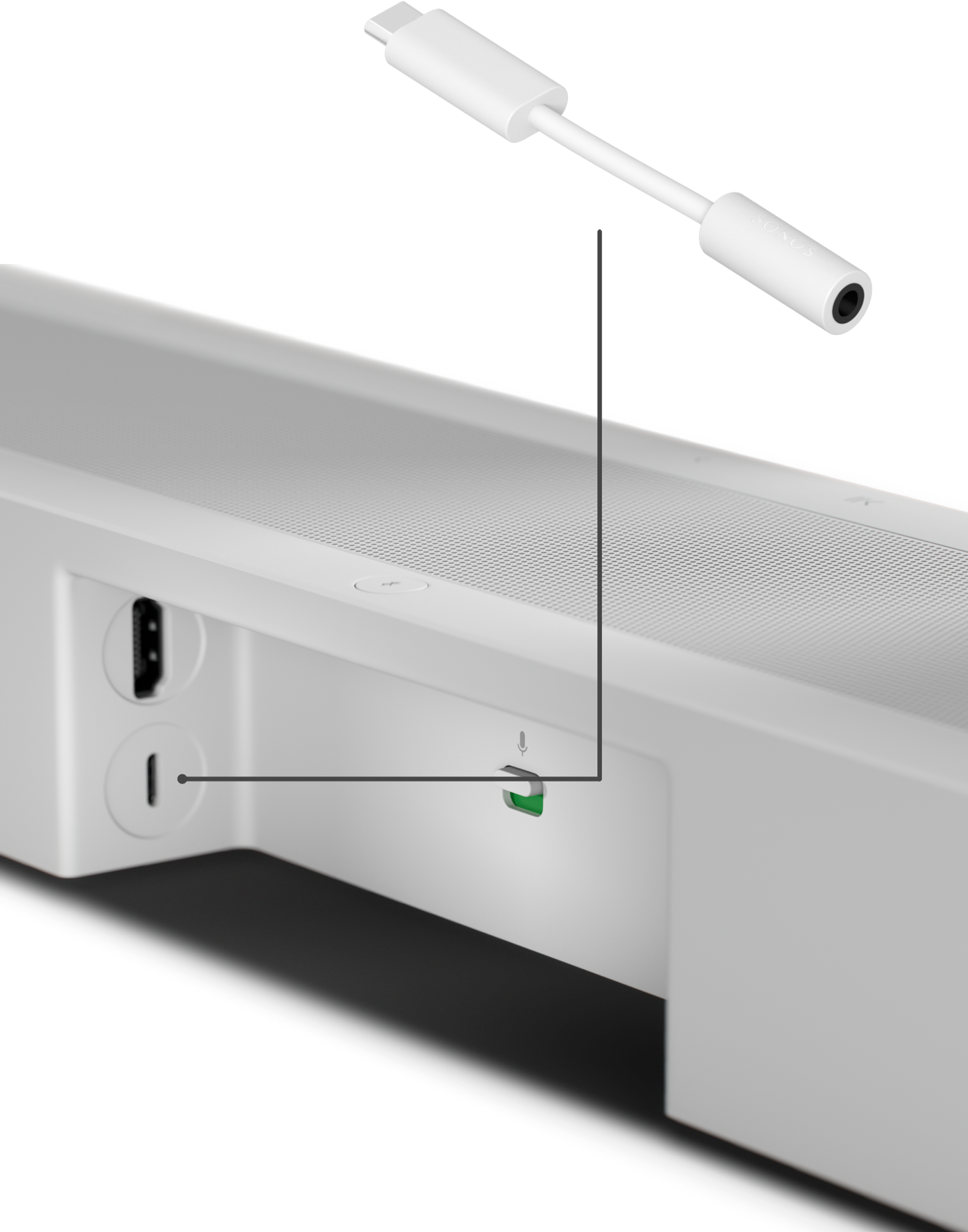
The Beam Ultra requires the Sonos Line-In Adapter or Sonos Combo Adapter in order to connect to an external audio source.
Before you start
- To use line-in, your Beam Ultra must already be set up using the Sonos app.
- Gather your required cables. Beam Ultra requires the Sonos Line-In Adapter or Sonos Combo Adapter in order to connect to an external audio source. You’ll also need either a 3.5mm audio cable or an RCA to 3.5mm audio cable, depending on how your source device can output sound.
- Check if your source device requires a preamp. For example, some turntables do not have a built-in preamp, so you will need to connect your turntable to an external preamp and then connect the preamp to Sonos.
Connect the audio source to your Beam Ultra
- Plug the Sonos Line-In Adapter or Sonos Combo Adapter into the USB-C port on the back of your Beam Ultra.
- Connect the 3.5mm end of your audio cable into the 3.5mm input on the Line-In Adapter.
- Connect the other end of the audio cable (either RCA or 3.5mm) into the corresponding output of your source device or preamp.
Start playback
- Start playing audio from your source device.
- Open the Sonos app for iOS or Android.
- On your Home screen, select Line-In under Your Sources.
- Select the source device to start playback through Sonos.


You can also enable Autoplay on Beam Ultra to automatically play your line-in source when Sonos detects a signal. See our article on adjusting Line-In settings for more information.


