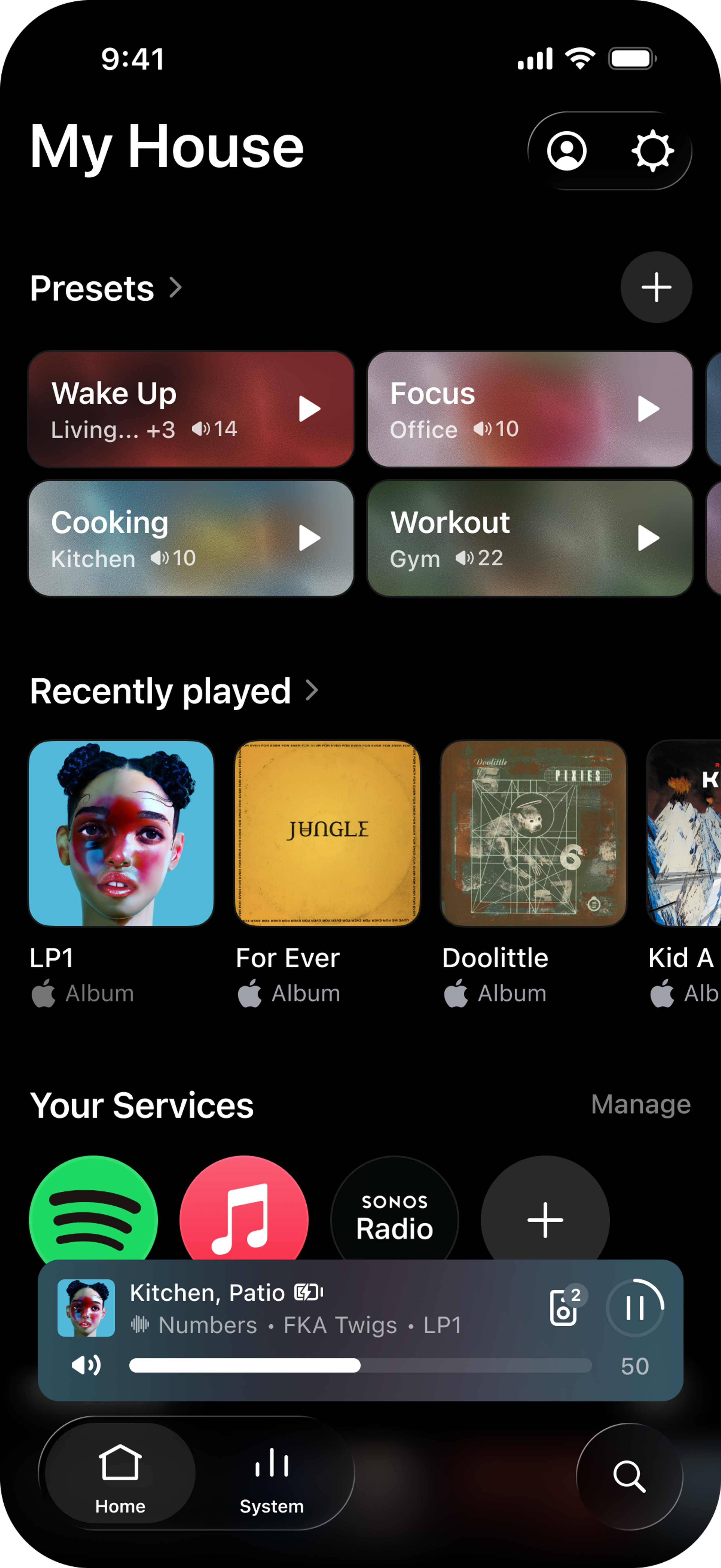
Presets
Presets let you start your favorite music in the rooms you choose, at the volume you set, with one tap. Presets appear in their own section on the Home screen of the Sonos app. Choose from your Sonos Favorites, or search for music across your services. Presets are saved to your Sonos account, so they appear when you sign in to the Sonos app on your phones and tablets.
Additional details
- A new preset can take a moment to appear on another phone or tablet. Pull down on the screen to refresh, or reopen the Sonos app.
- Selecting a preset starts your music. To pause, use the playback controls in the Sonos app.
- If music is already playing in some of the preset’s rooms, the preset starts in the rooms you chose. Other rooms in that group keep playing their current music.
- You can create up to 50 presets. Delete a preset to make room for a new one.
- You can play presets from the Sonos App. Voice commands and the Sonos web app do not support presets at this time.
How to create a preset
- Open the Sonos app and go to the Home screen.
- Find the Presets section and select +.
- If there are no existing presets you may also tap Create a preset.
- Enter a name for your preset in the Name field.
- Names can have up to 128 characters.
- Select Content to choose what the preset plays.
- Playlists and stations saved to your Sonos Favorites appear in the prepopulated list.
- You can also use the search bar to search your services.
- Select the shuffle button if you want your music to shuffle.
- Select Rooms to choose where the preset plays.
- Select one room, or several rooms to play as a group.
- Set the volume for each room.
- Select Save in the top right corner.
How to create a preset from a playing room or group
- Open the Sonos app and go to the System tab.
- Find the room or group playing the music you want to set as a preset.
- You can select “My current queue” to retain that queue as a Sonos Playlist for use with the preset.
- Select the ellipses icon (...).
- Select Save as preset
How to edit a preset
- Open the Sonos app and go to the Home screen.
- Tap Presets.
- You can also press and hold a preset from the Home screen to open its edit screen.
- Select the preset you want to edit.
- Change the Name, Content, or Rooms as needed.
- To remove the preset instead, select Delete preset.