Get to know your Sonos Play
Learn more about Sonos Play's essential features like playback controls, Bluetooth pairing, grouping, and charging.
Playback controls
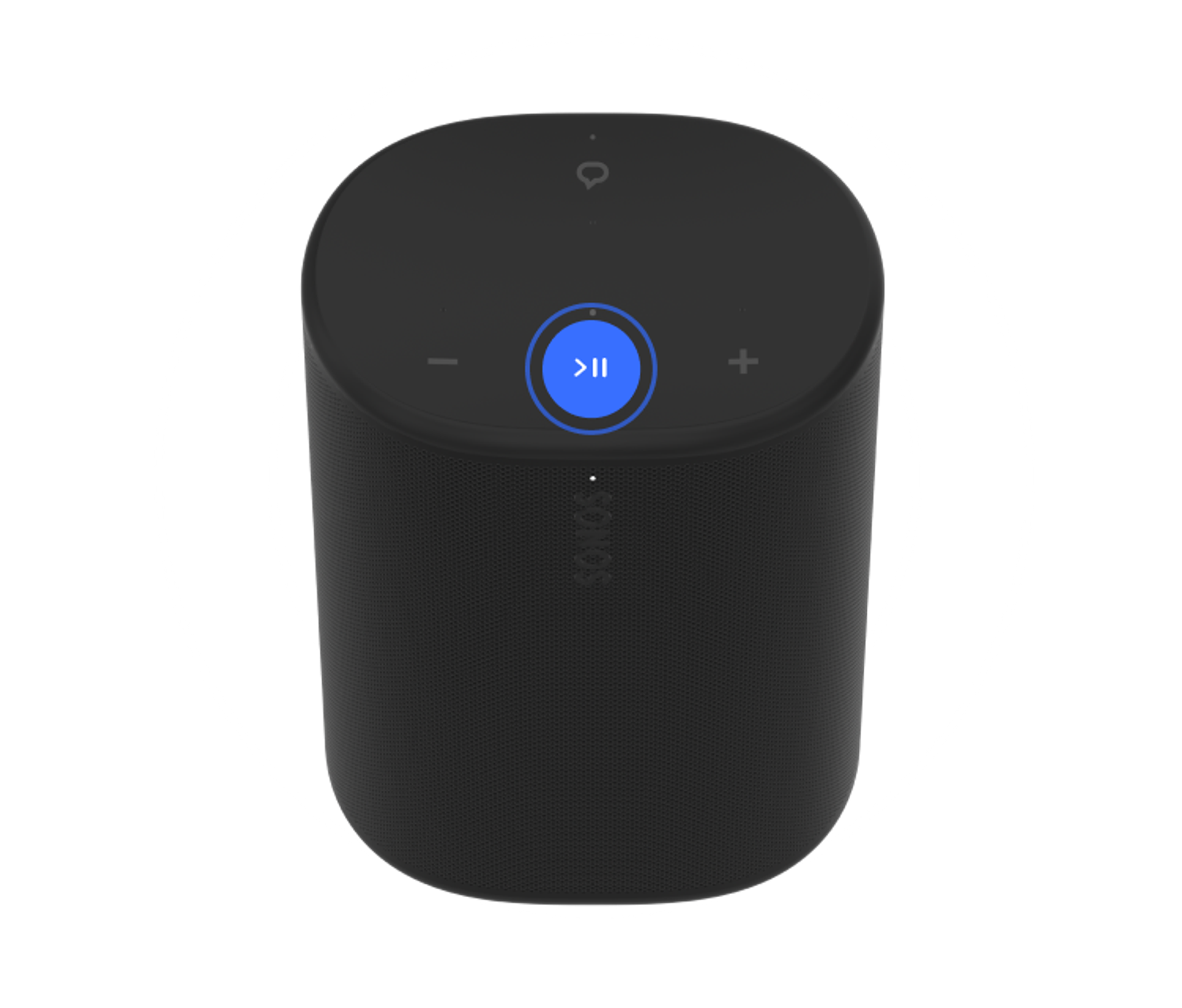
Press to play or pause audio.


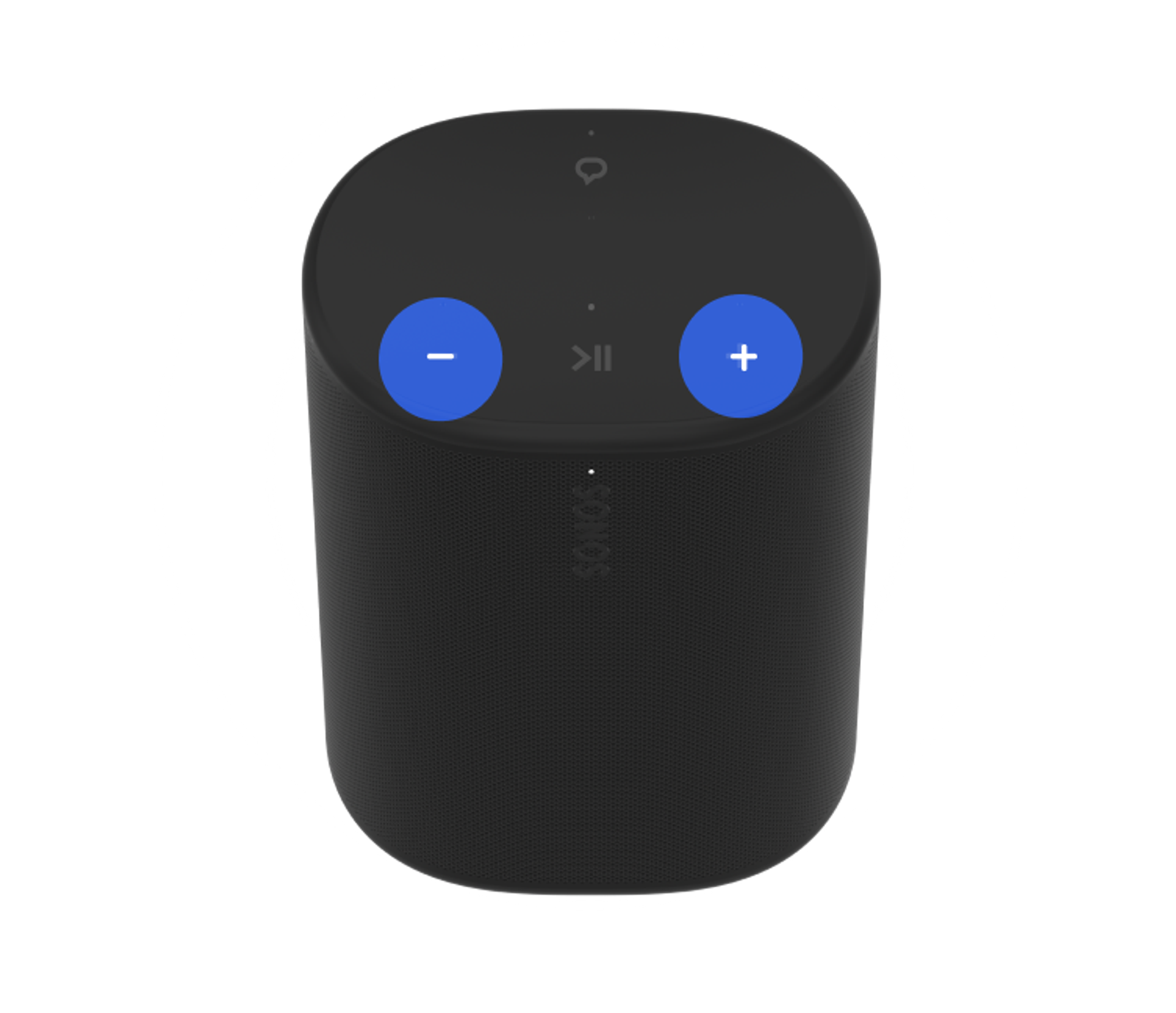
Press + or - for small volume adjustments. Press and hold to quickly change the volume.
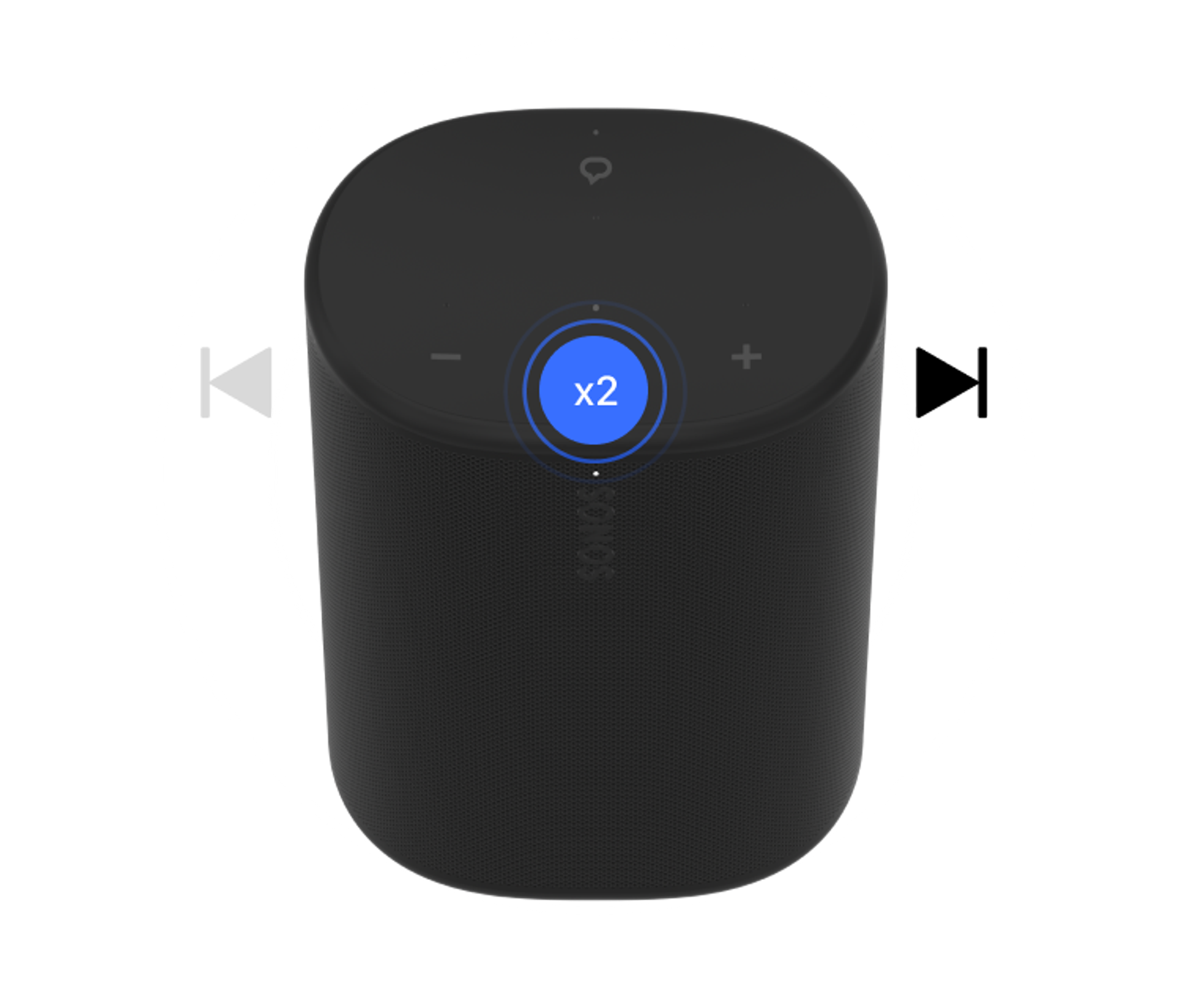
Double press play/pause to skip to the next track.
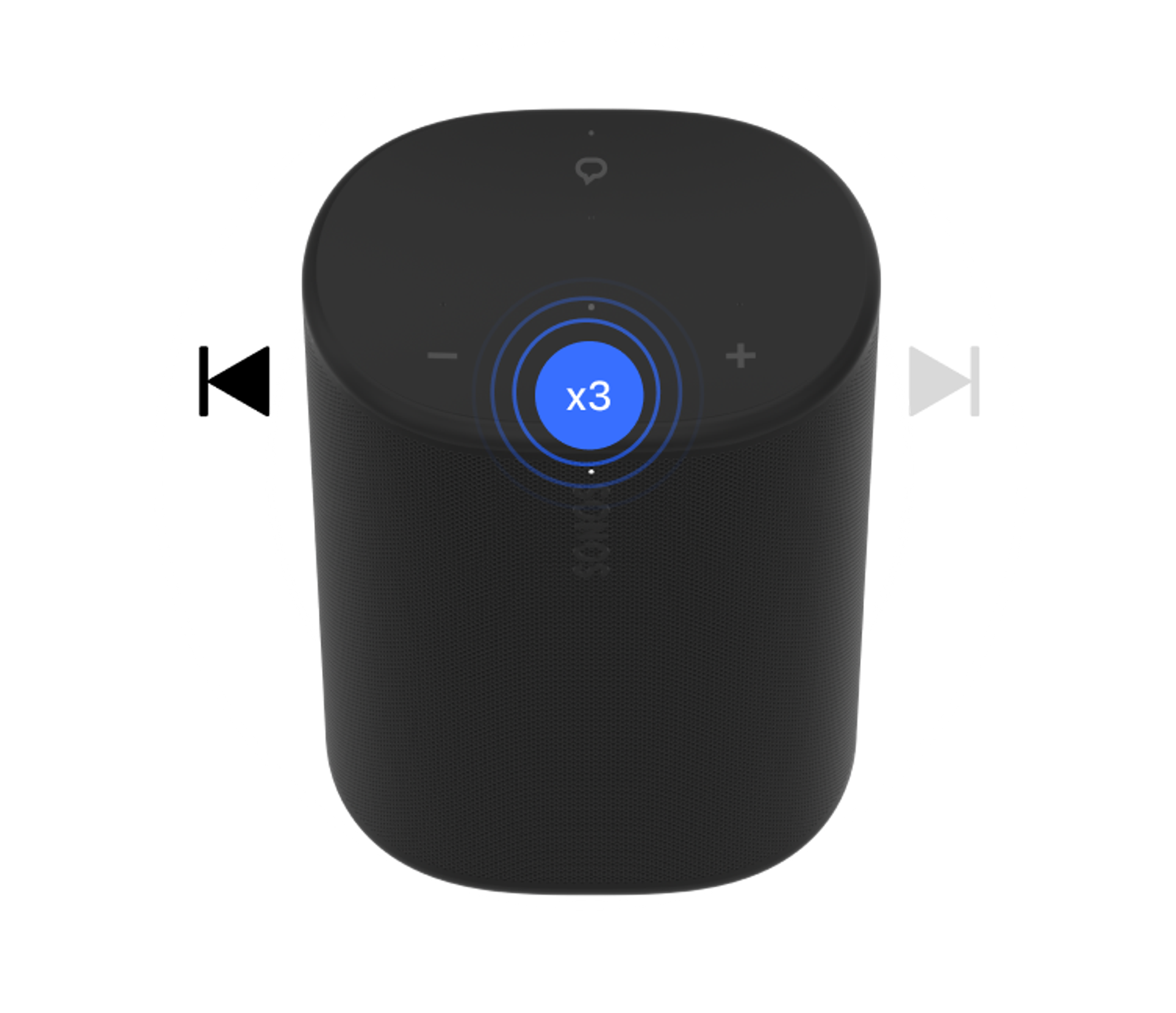
Triple press play/pause to play the previous track.
Bluetooth
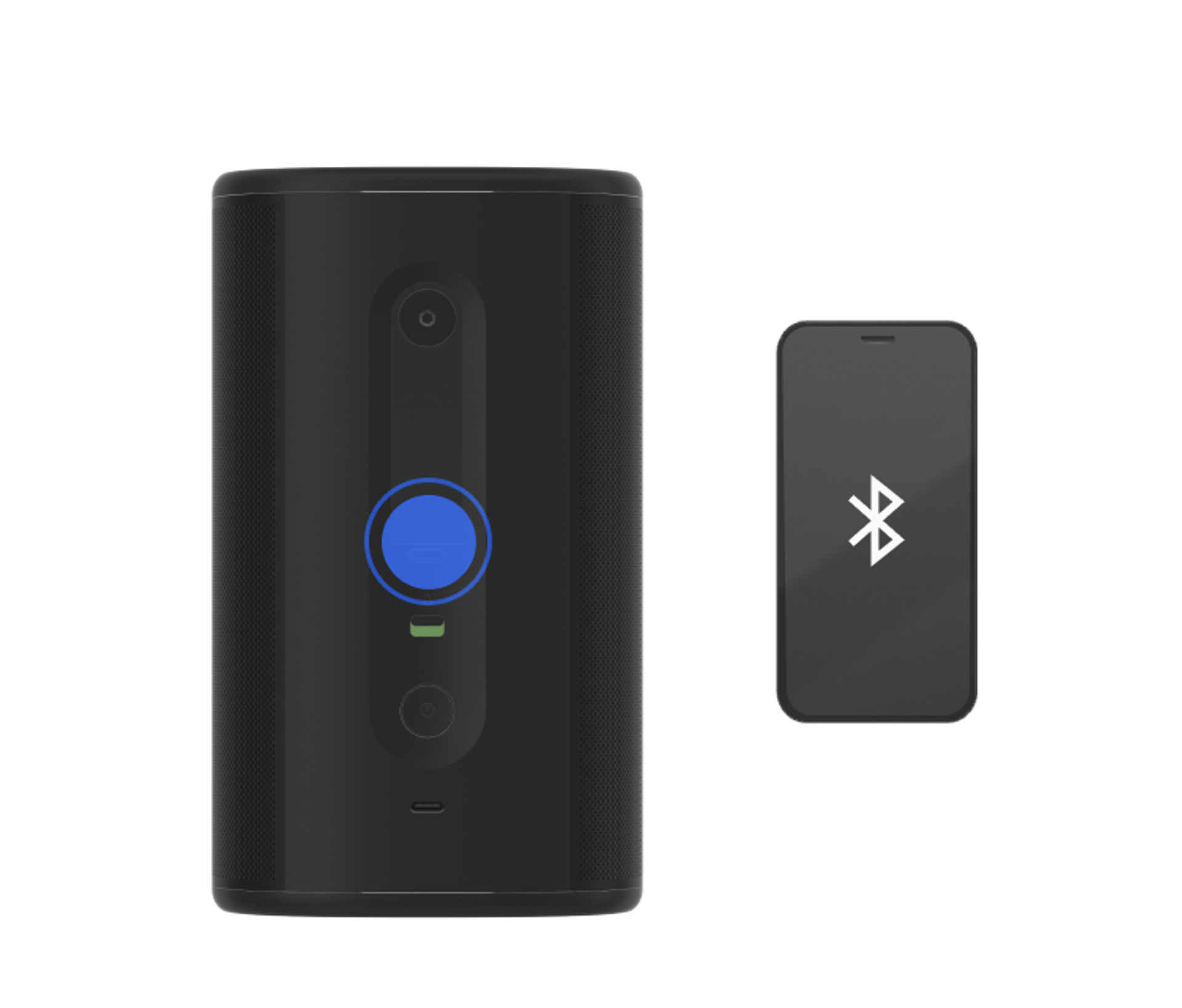
To pair a device, press and hold the Bluetooth button until you hear the pairing chime.
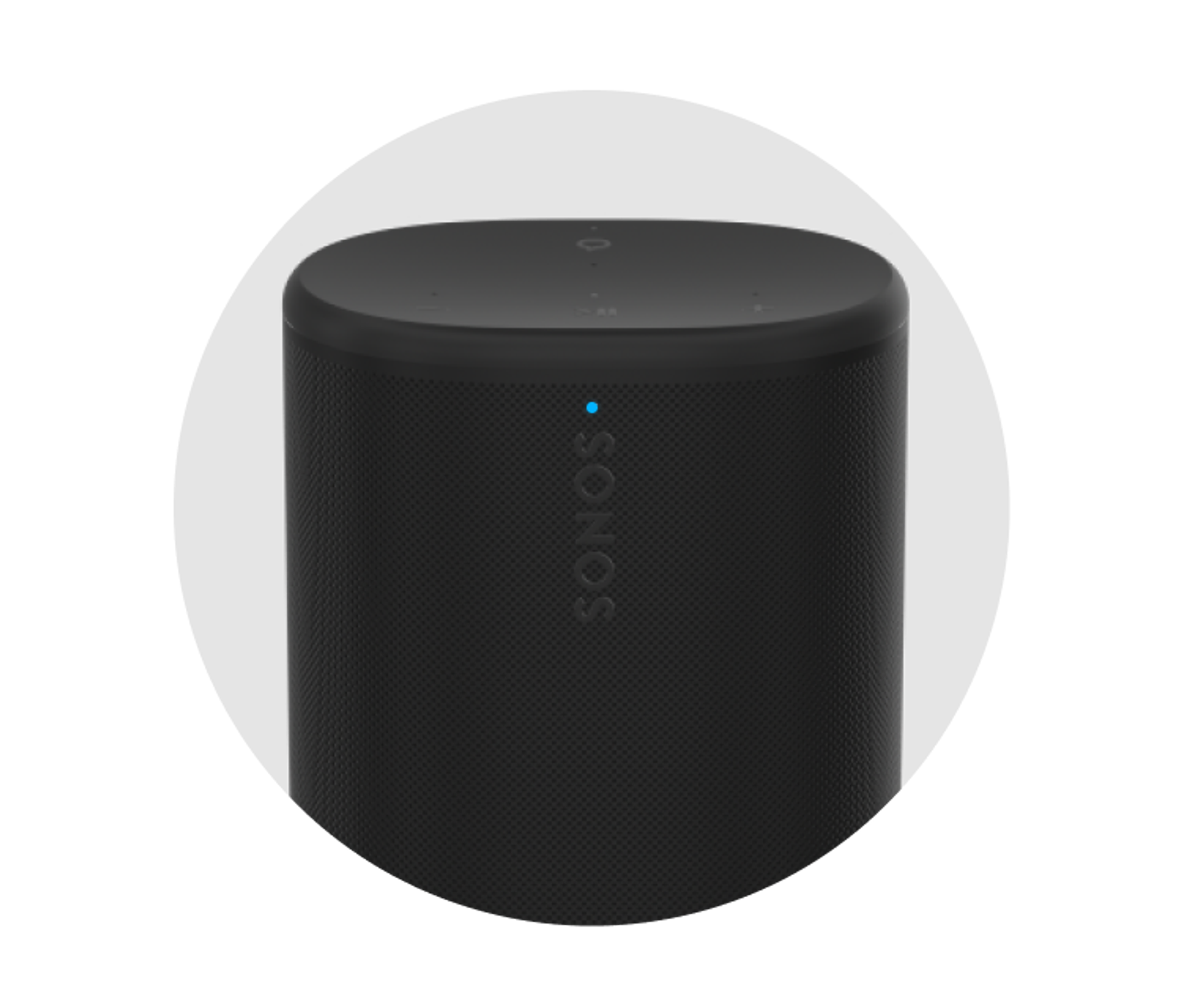
Blinking blue: Ready to connect
Solid Blue: Connected to device
Voice
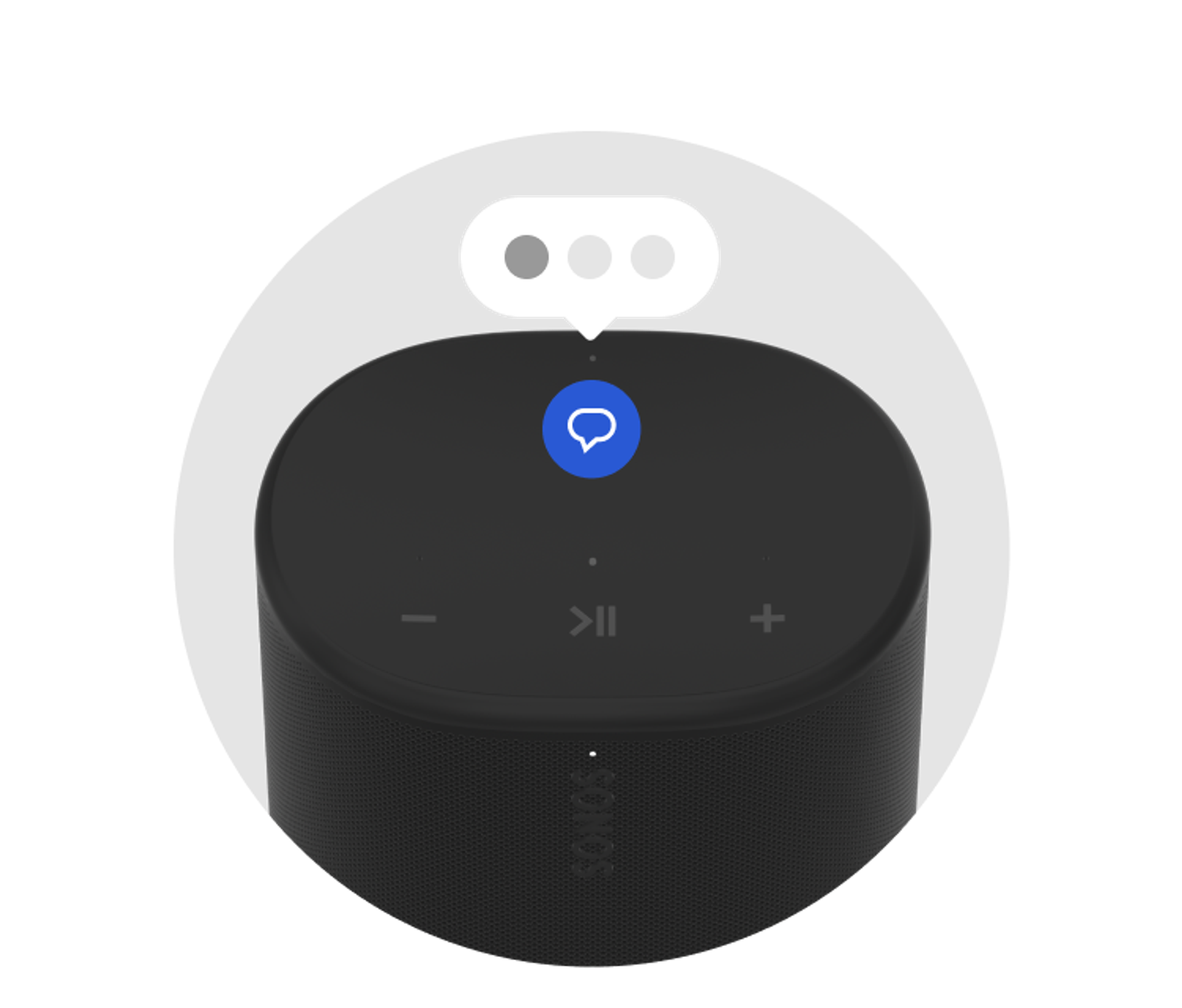
Add a voice assistant to Play and control your Sonos system with voice. See our article on adding a voice assistant for more information.
Grouping
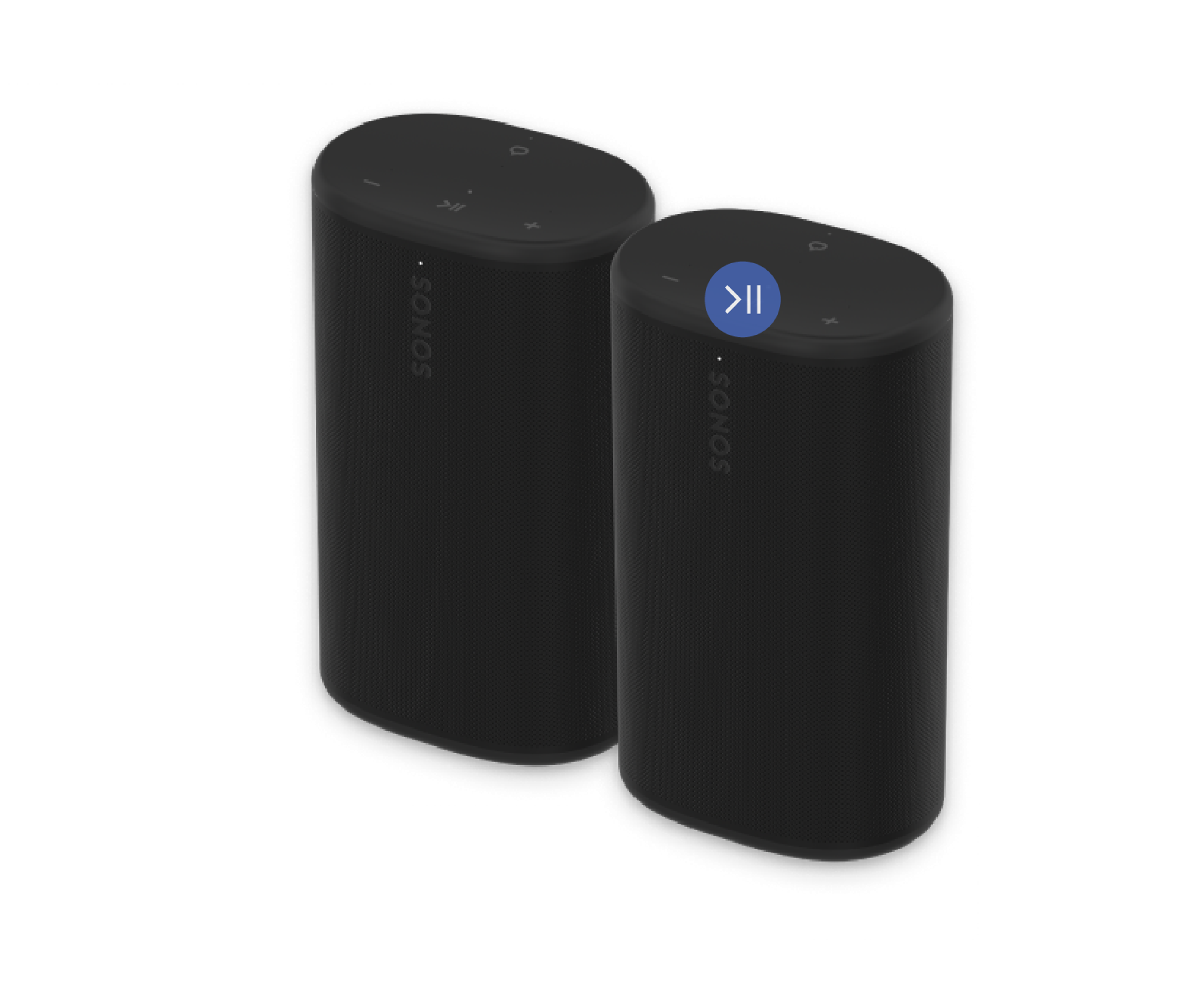
Group with the nearest Sonos product by pressing and holding the Play/Pause button until you hear the second chime. Sonos Play also supports grouping away from your home WiFi. See our article on grouping using Bluetooth for more information.
Automatic Trueplay™
When Automatic Trueplay is enabled and the microphone is turned on, Play will automatically adjust its sound to fit your environment. Learn more in our Automatic Trueplay article.
Battery and charging
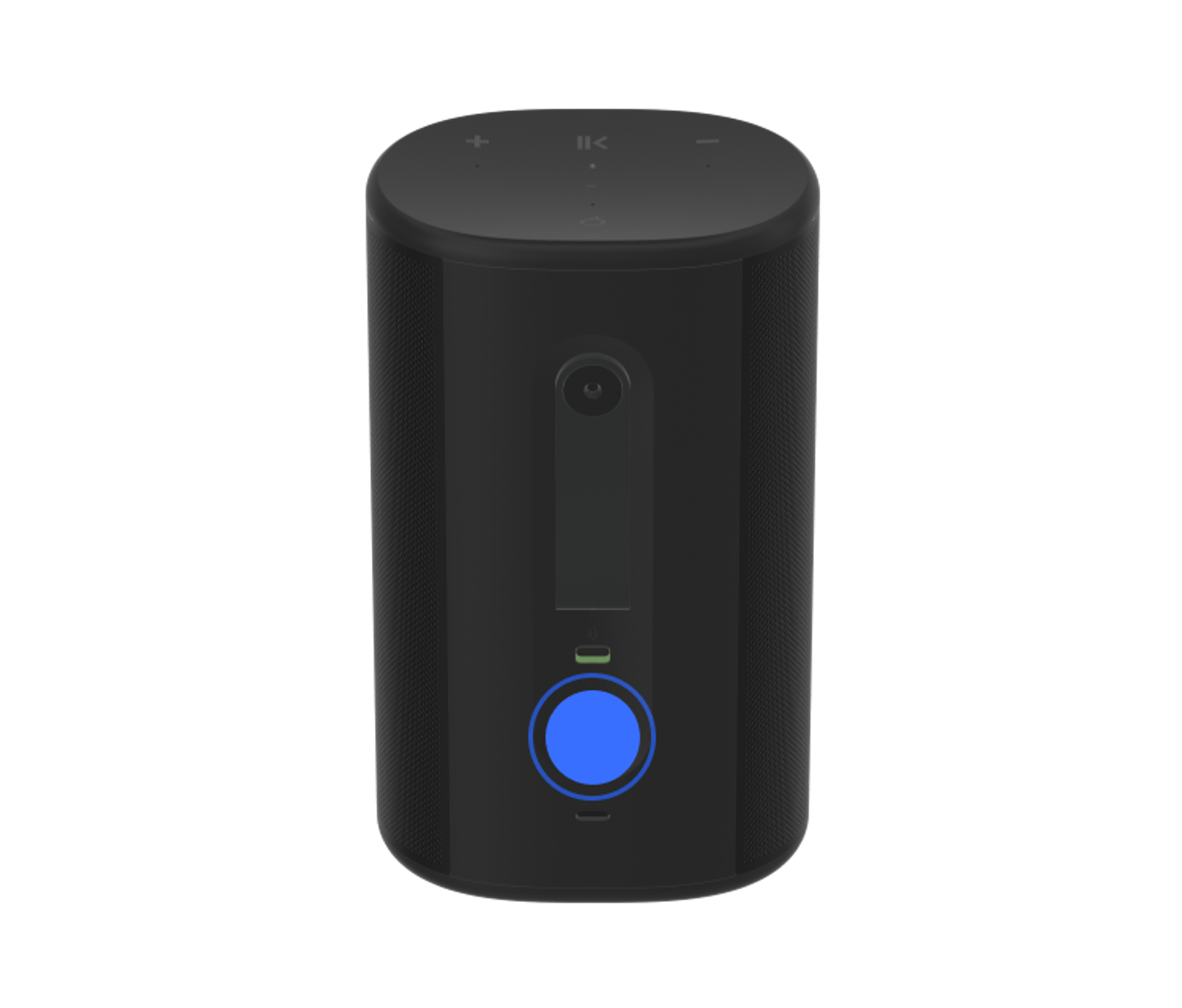
Press the power button once to sleep. Wake Play by pressing any button.


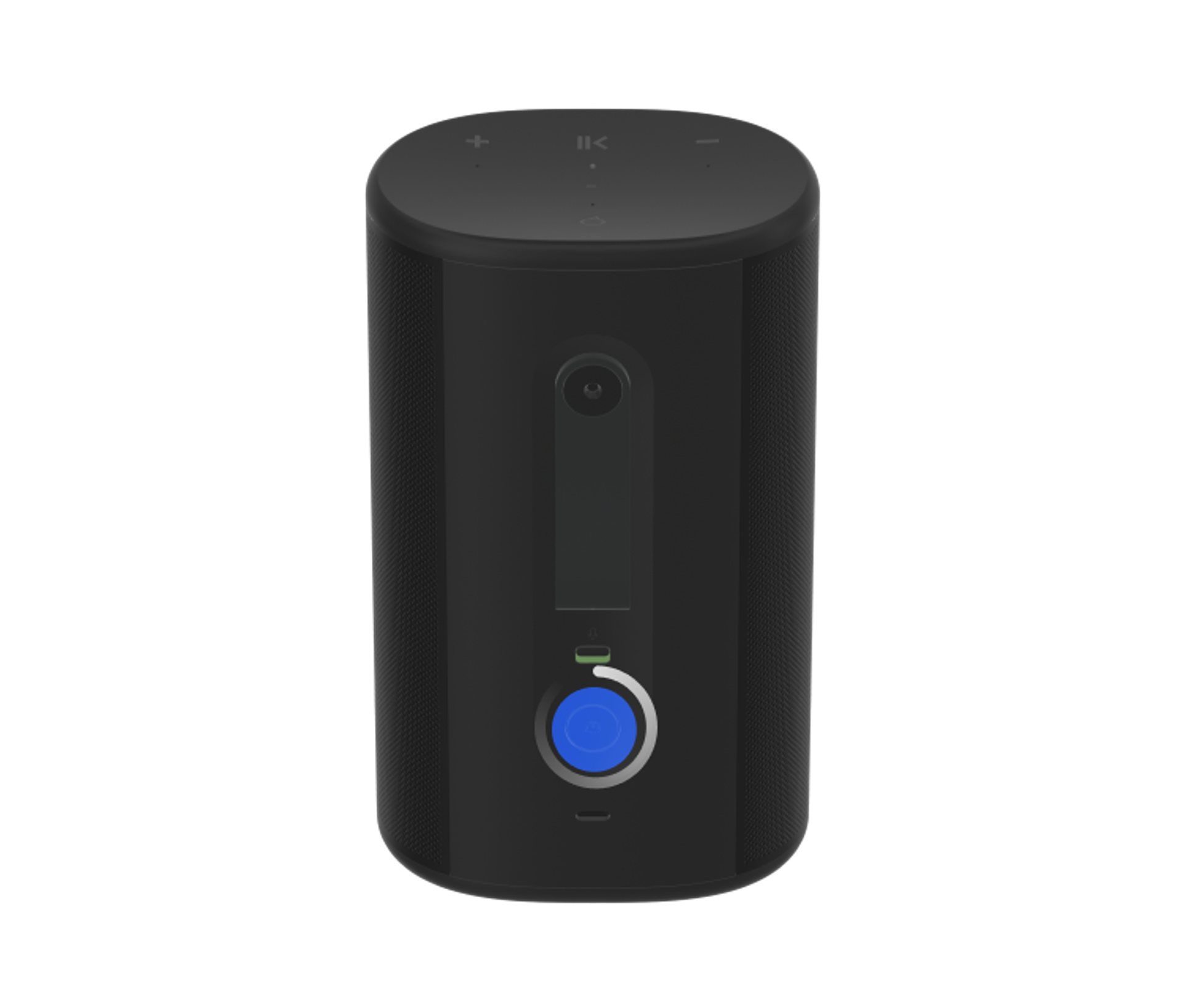
Press and hold the power button for five seconds to power down. Press once to turn Play back on.

The battery light blinks orange when the battery is low.
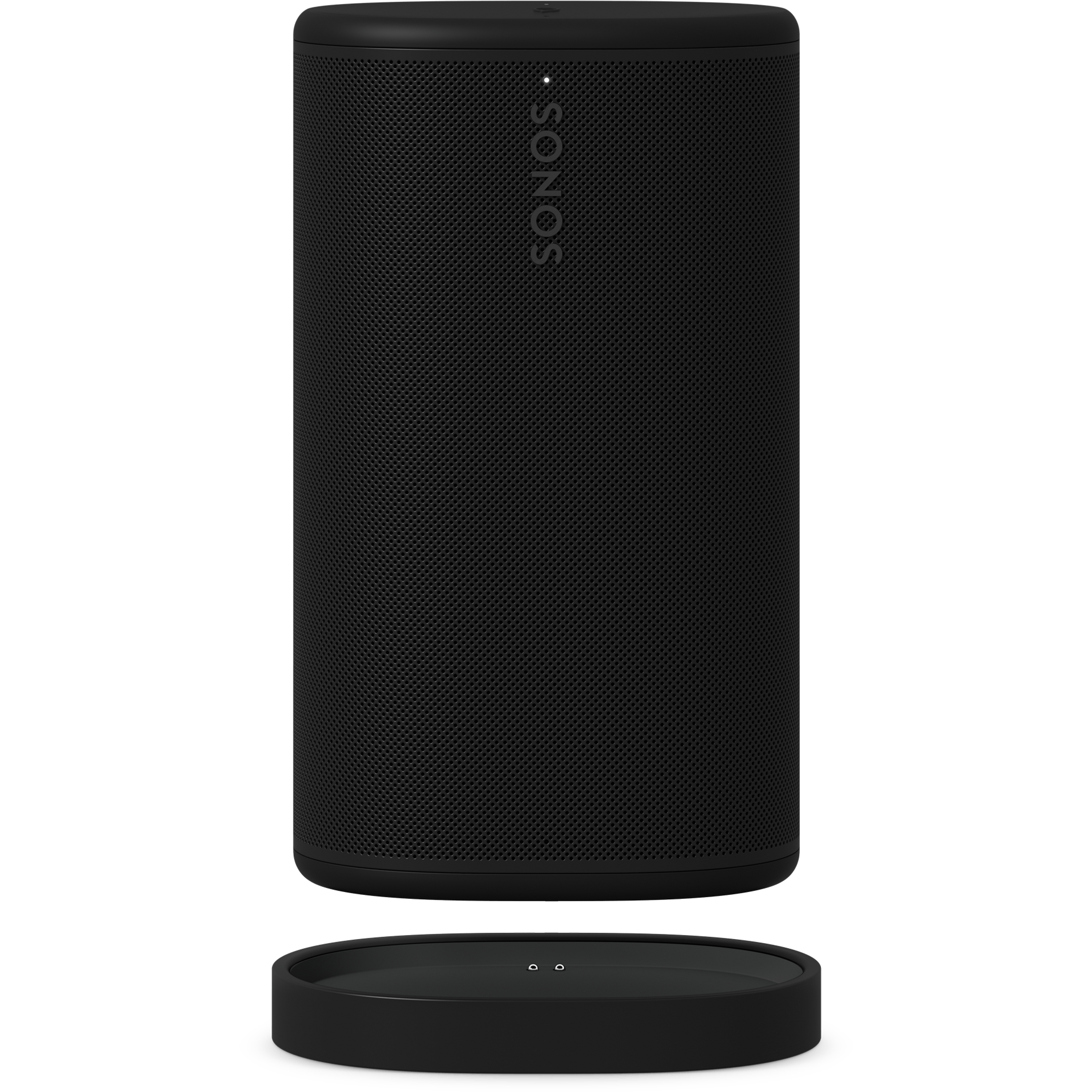
Use the included USB-C cable to connect Play to a supported 45W charger, or place it on the provided charging base.


