Pair Sonos Play with Bluetooth
This article will show you how to pair, disconnect, and reconnect your devices to your Play via Bluetooth.
Before you start
- When you unbox your Play for the first time, you can connect it to your Bluetooth device and start listening to audio right away. In order to connect Play to your WiFi network and group it with other Sonos products, you’ll need to set up with the Sonos app on WiFi for iOS or Android.
- Two Plays in a stereo pair can play Bluetooth audio when they’re connected to WiFi.
- Bluetooth audio is disabled when two Play’s are used as portable surrounds.
Pair your device with Play
Follow these steps to pair a device to your Play via Bluetooth:
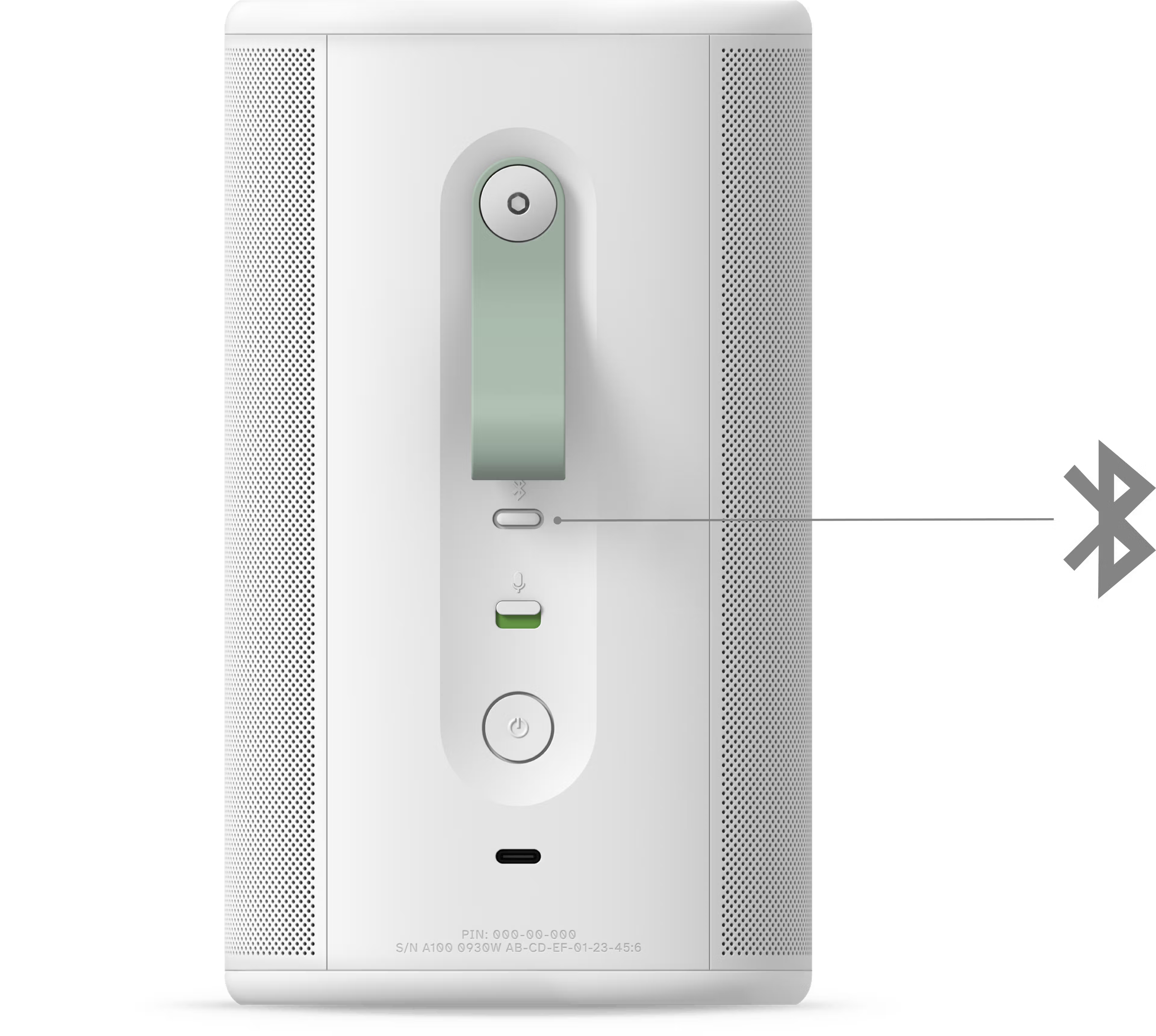
- Press and hold the Bluetooth button on the back of your Play until you hear a chime. The front status LED will start flashing blue.
- Go to your device’s Bluetooth settings and select your Play from the device list.
- When successfully paired, you’ll hear another chime and the status LED will change to solid blue for a few seconds.


You can repeat this process to pair additional Bluetooth devices with your Play.
Disconnect your device from Play
Follow these steps to disconnect your Bluetooth device from your Play.
From your Bluetooth device
- Go to your device’s Bluetooth settings.
- Select your Play and choose Disconnect.
From your Play
While your Play is paired to your device via Bluetooth, press the Bluetooth button on the back to switch it out of Bluetooth mode.
Play has an Idle Auto-Disconnect setting which will disconnect your Play from a Bluetooth device after 30 minutes of sitting idle. This setting is off by default, but can be turned on in Settings under Your System, then selecting Play > Bluetooth > Idle Auto-Disconnect.


Reconnect Play to a Bluetooth device
Follow these steps to reconnect your previously-paired device to your Play:
From your Bluetooth device
- Go to your device’s Bluetooth settings.
- Select your Play from the list of previously connected devices to reconnect.
From your Play
- Press the Bluetooth button on the back of your Play to switch it to Bluetooth mode. Play will search for its most recent Bluetooth connection.
- When your Play finds a previously-paired device, the status LED will turn solid blue and you’ll hear a chime confirming that it has reconnected.
You can set Play to automatically reconnect to its most recent Bluetooth device. This setting is off by default, but can be turned on in the Settings under Your System > Play > Bluetooth > Always Auto-Connect.


