Configure McAfee Total Protection to work with Sonos
McAfee Total Protection may block your computer from connecting to your Sonos system. Follow the steps below to make sure McAfee is configured to allow the Sonos app to connect to your system.
1. Open McAfee Total Protection by double clicking the McAfee logo.


- Windows: Located on the Taskbar in the bottom right corner of the desktop.
- Mac: Located on the Menu Bar in the top right corner of the desktop.
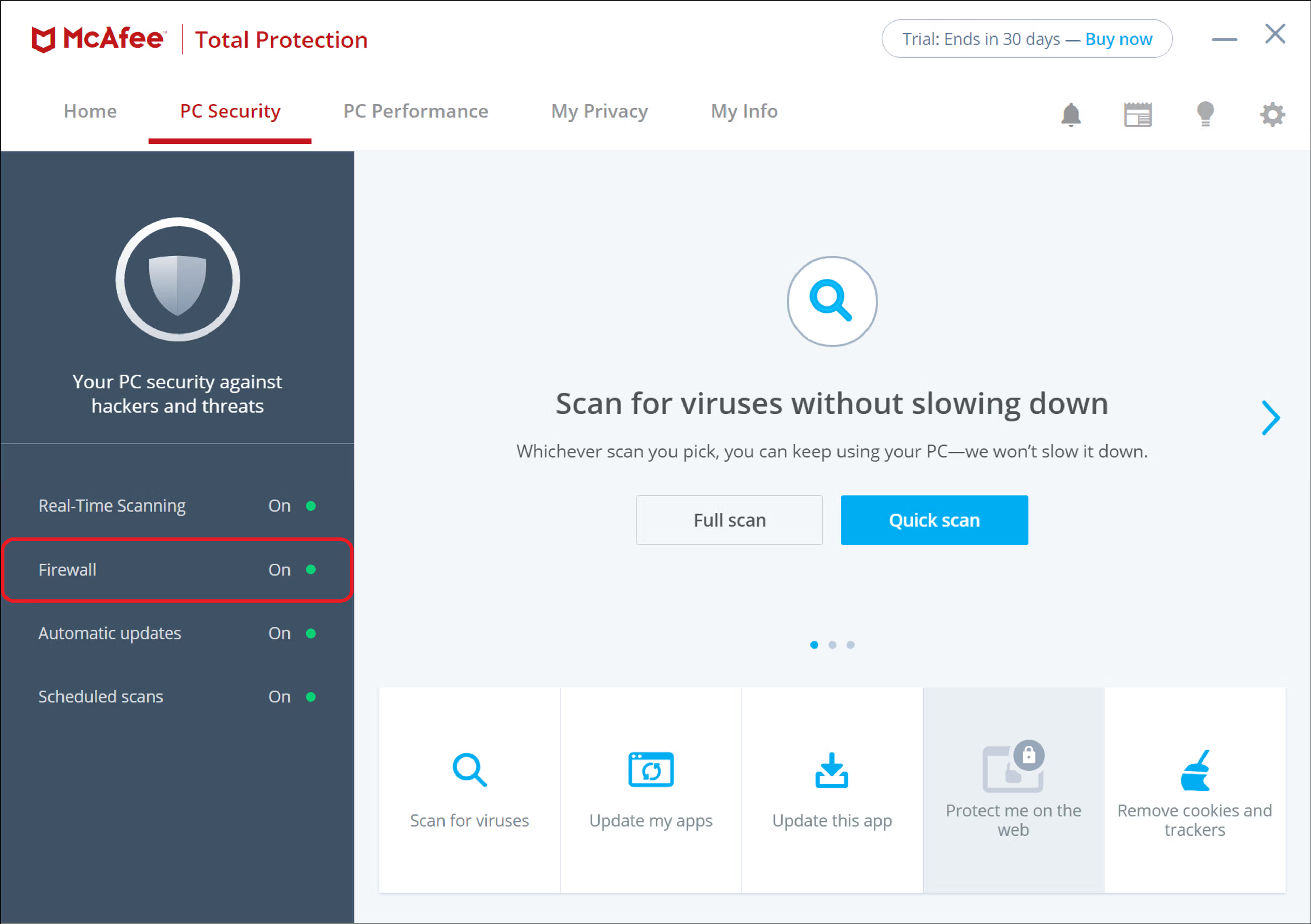
2. Click PC Security, then Firewall.
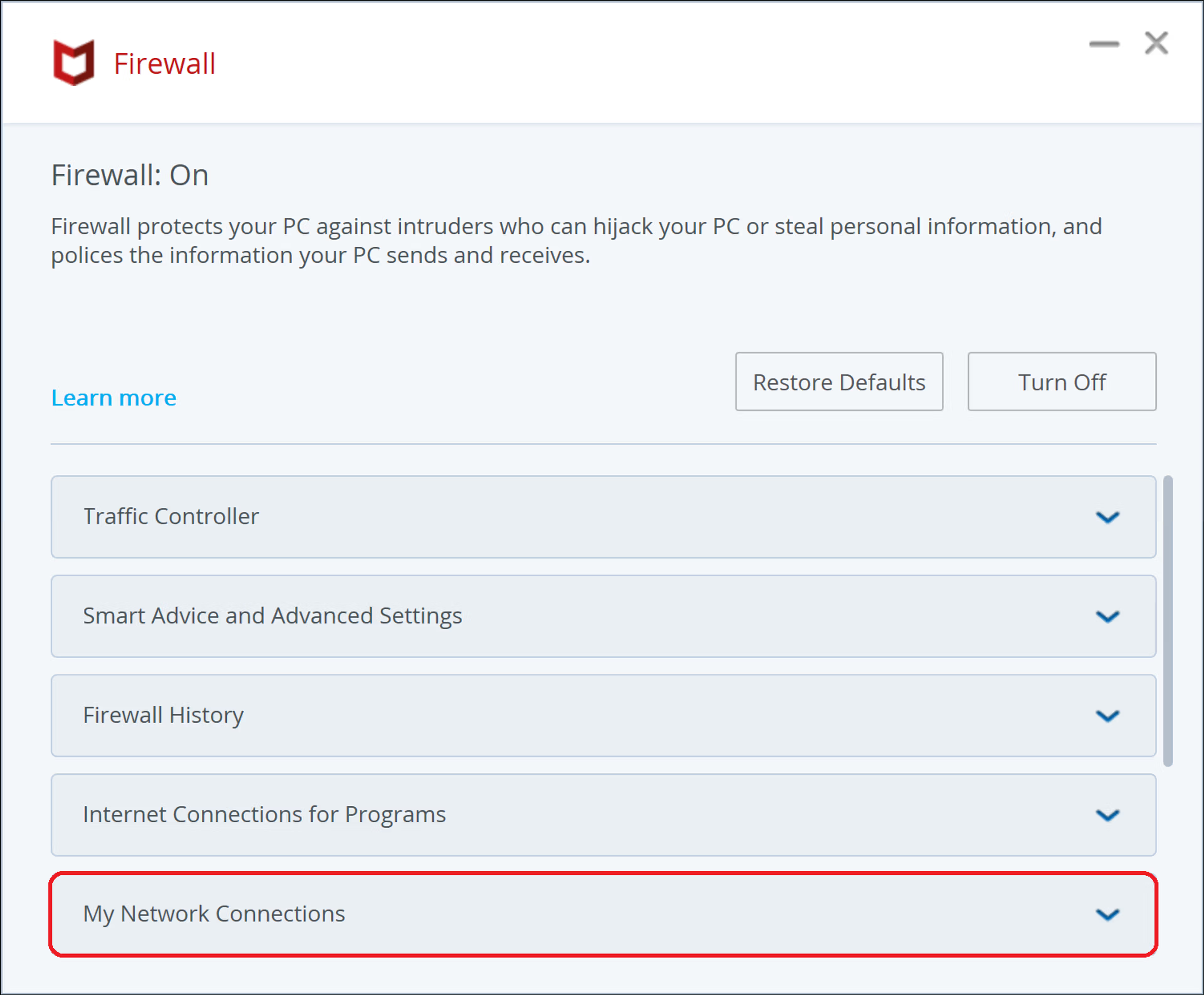
3. Click on My Network Connections.
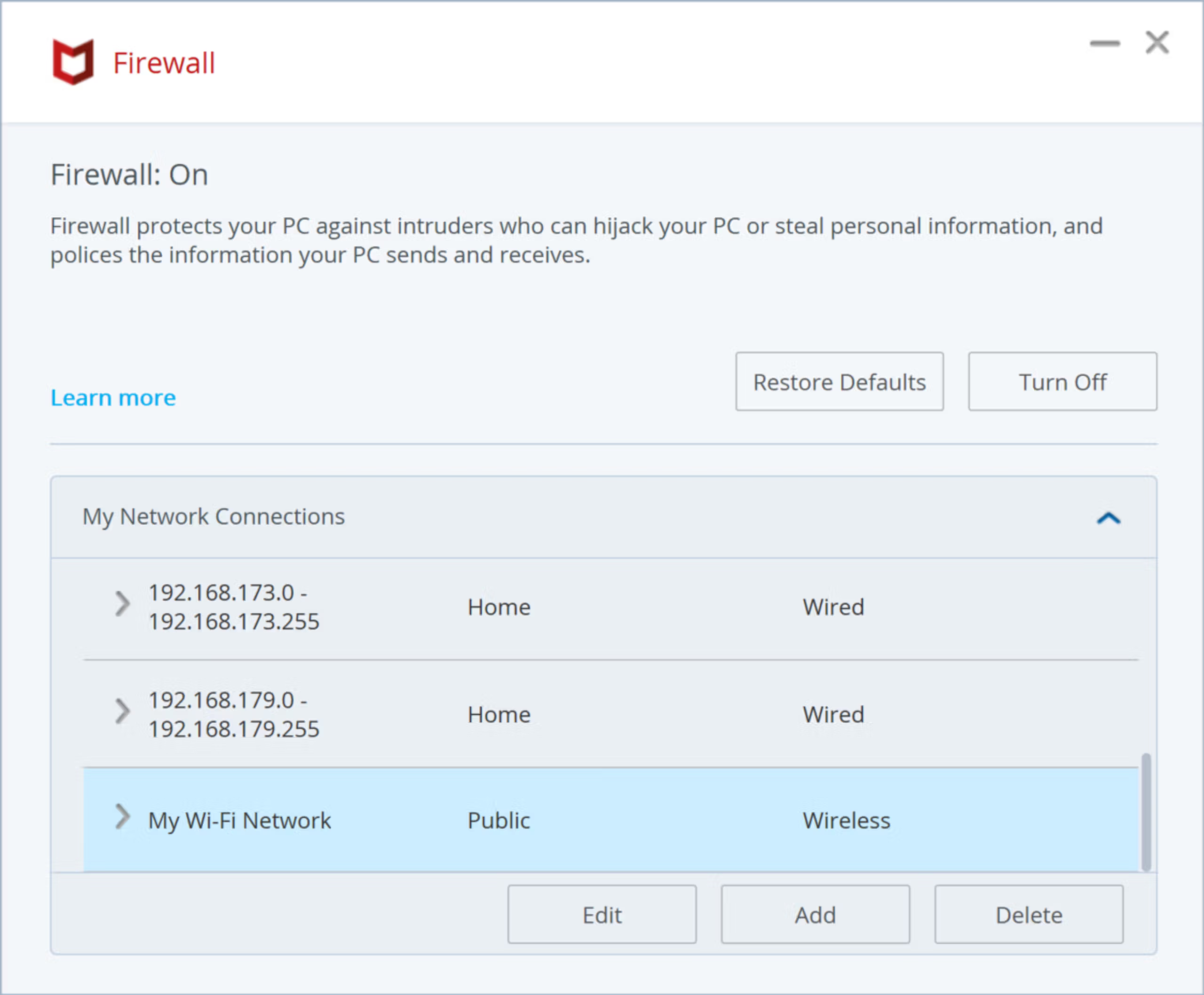
4. Select the network you are currently connected to and click Edit.
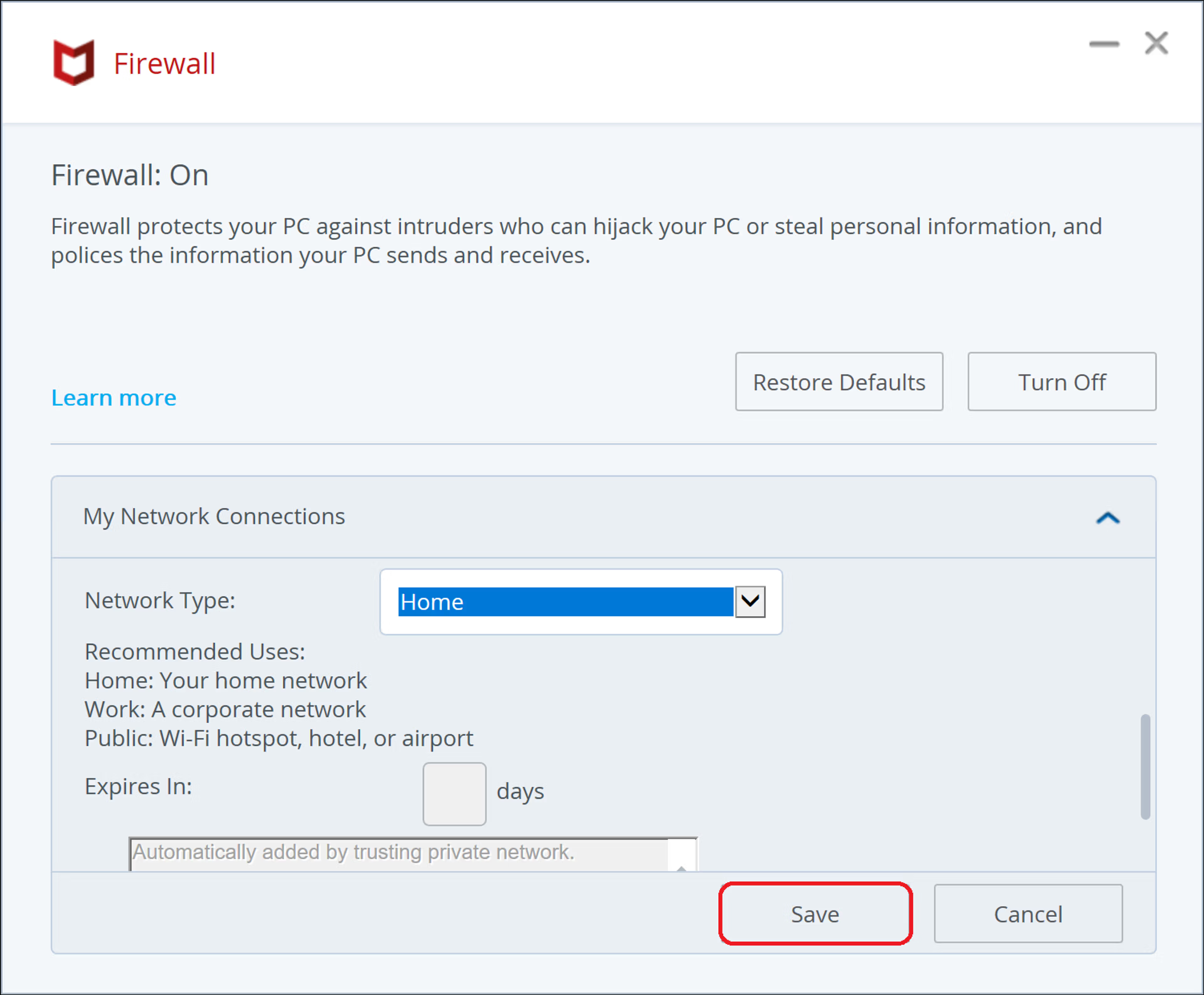
5. Set the Network Type for that connection as Home and click Save.
McAfee Total Protection is now configured to work with Sonos.


