Configure Norton 360 to work with Sonos
Norton 360 may block your computer from connecting to your Sonos system. Follow the steps below to make sure Norton 360 is configured to allow the Sonos app to connect to your system.
1. Open Norton 360 by double clicking the Norton logo.


- Windows: Located on the Taskbar in the bottom right corner of the desktop.
- Mac: Located on the Menu Bar in the top right corner of the desktop.
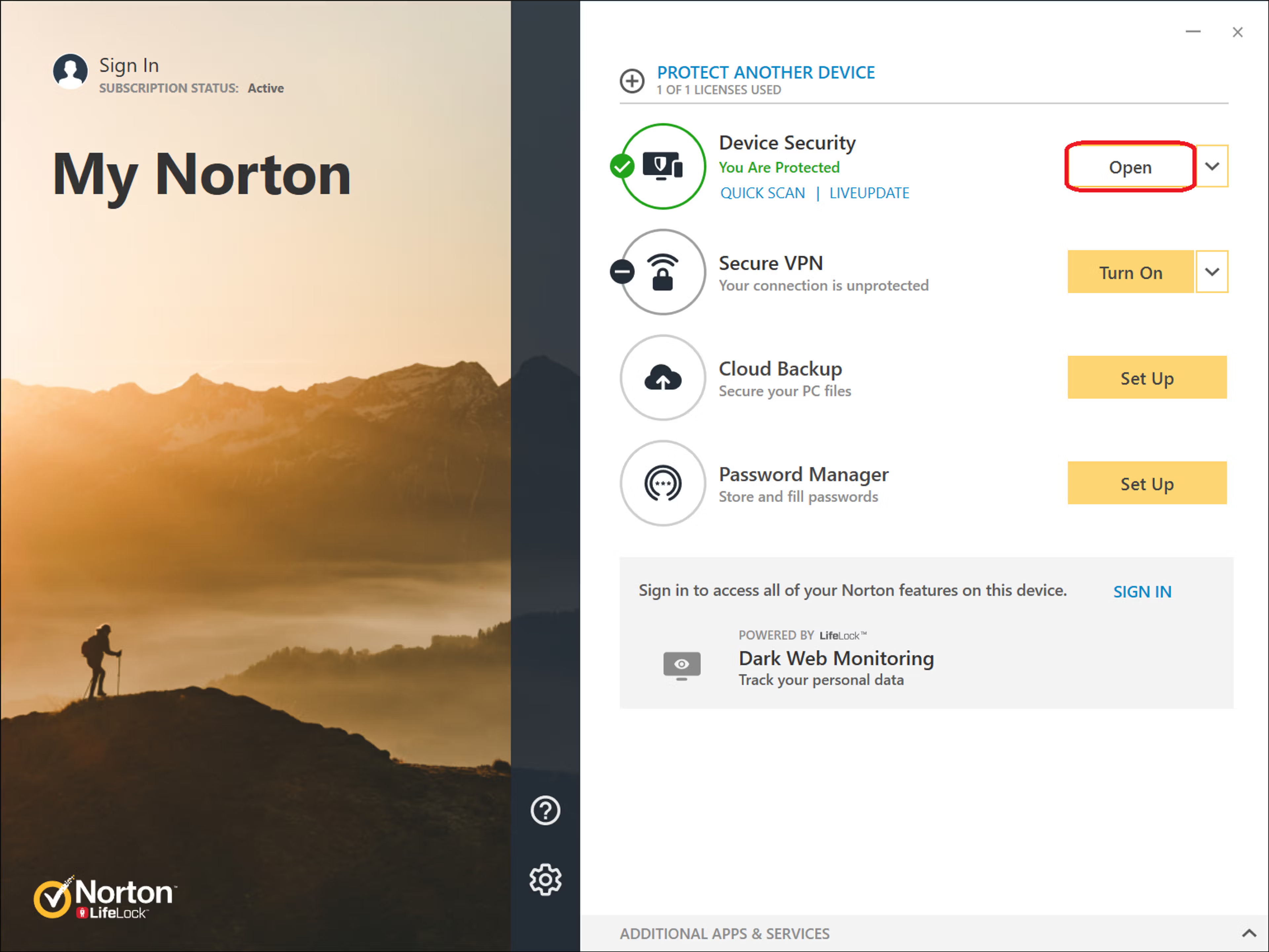
2. Click Open, next to Device Security.
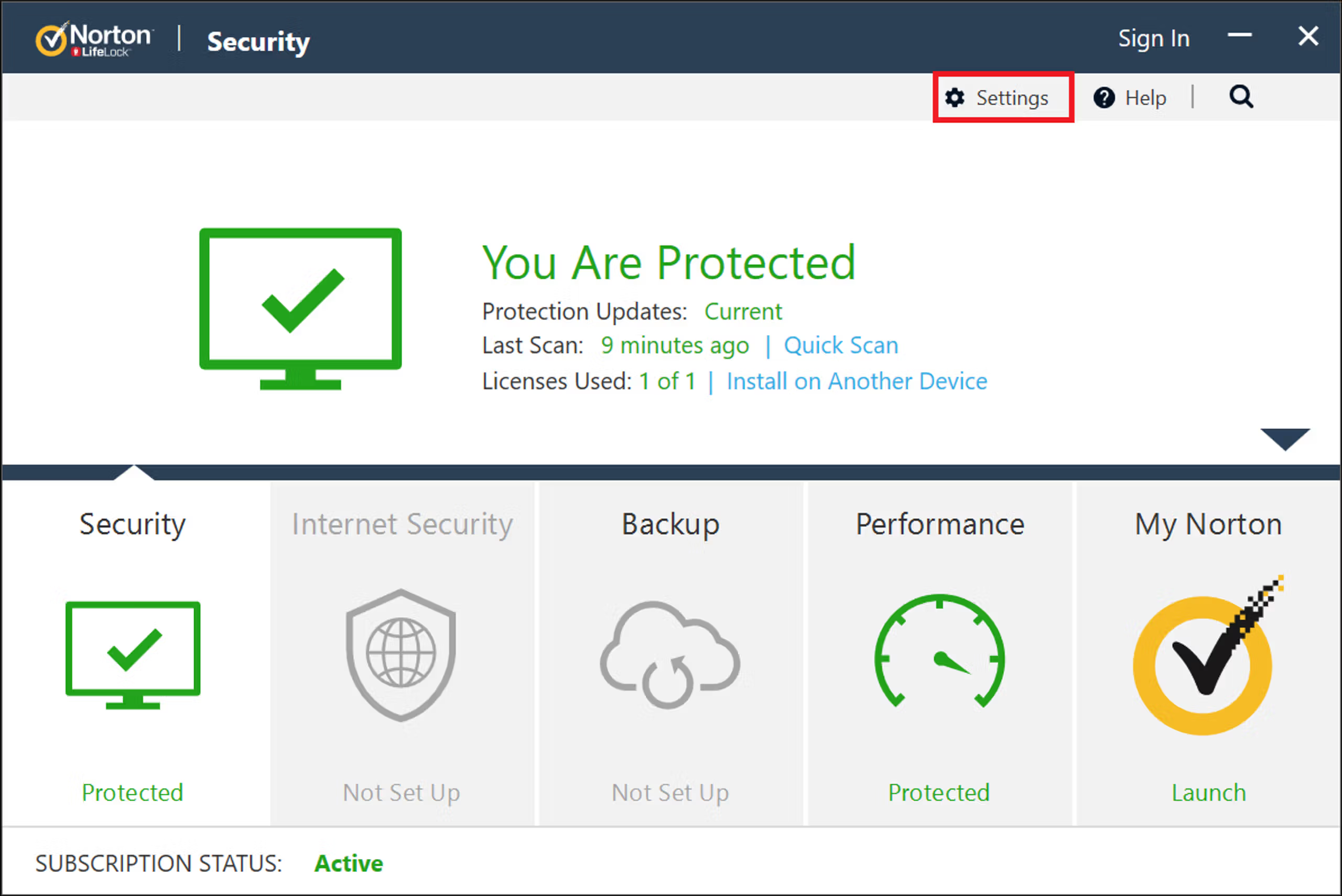
3. Once Norton’s Device Security window is open, click on Settings.
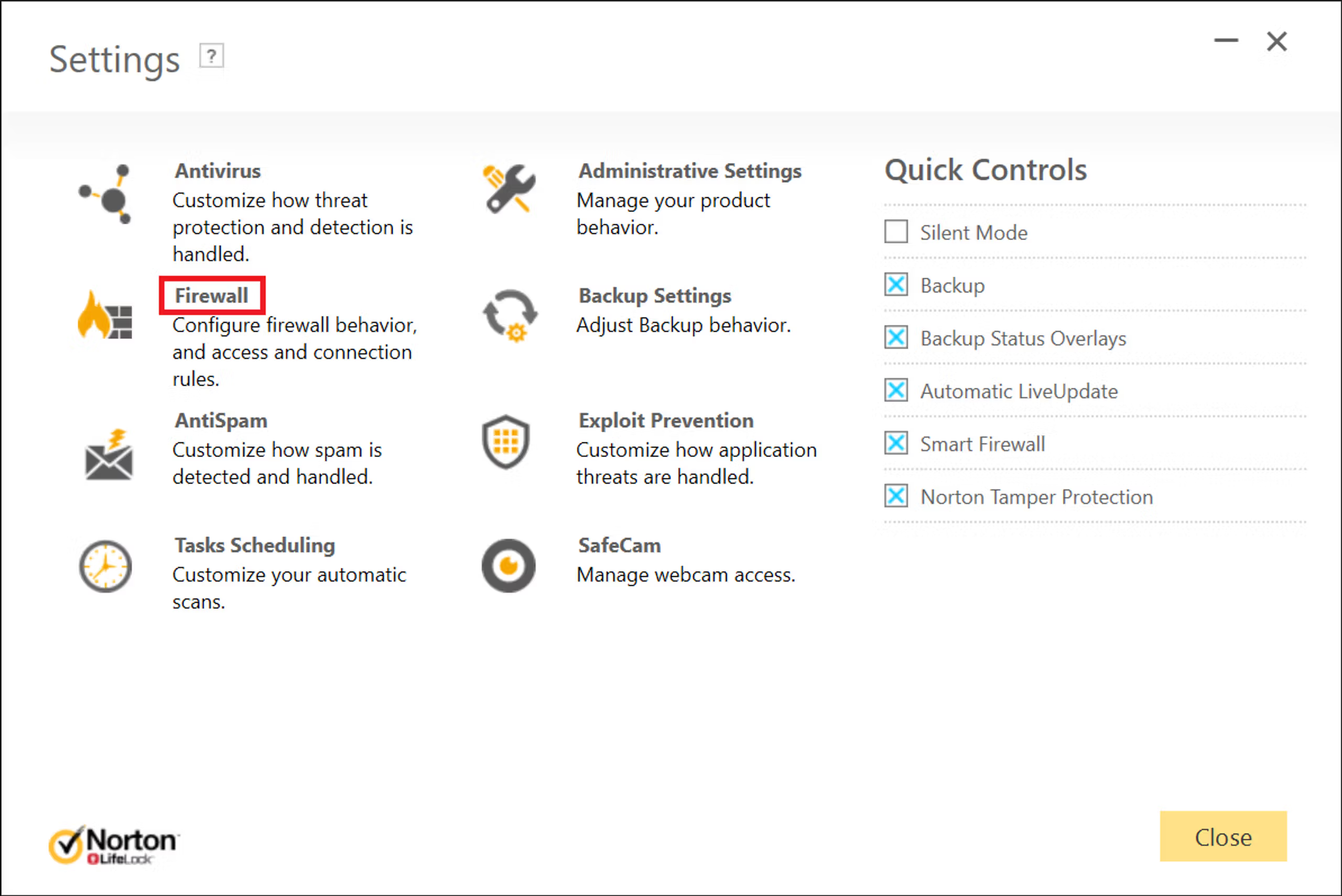
4. Click on Firewall.
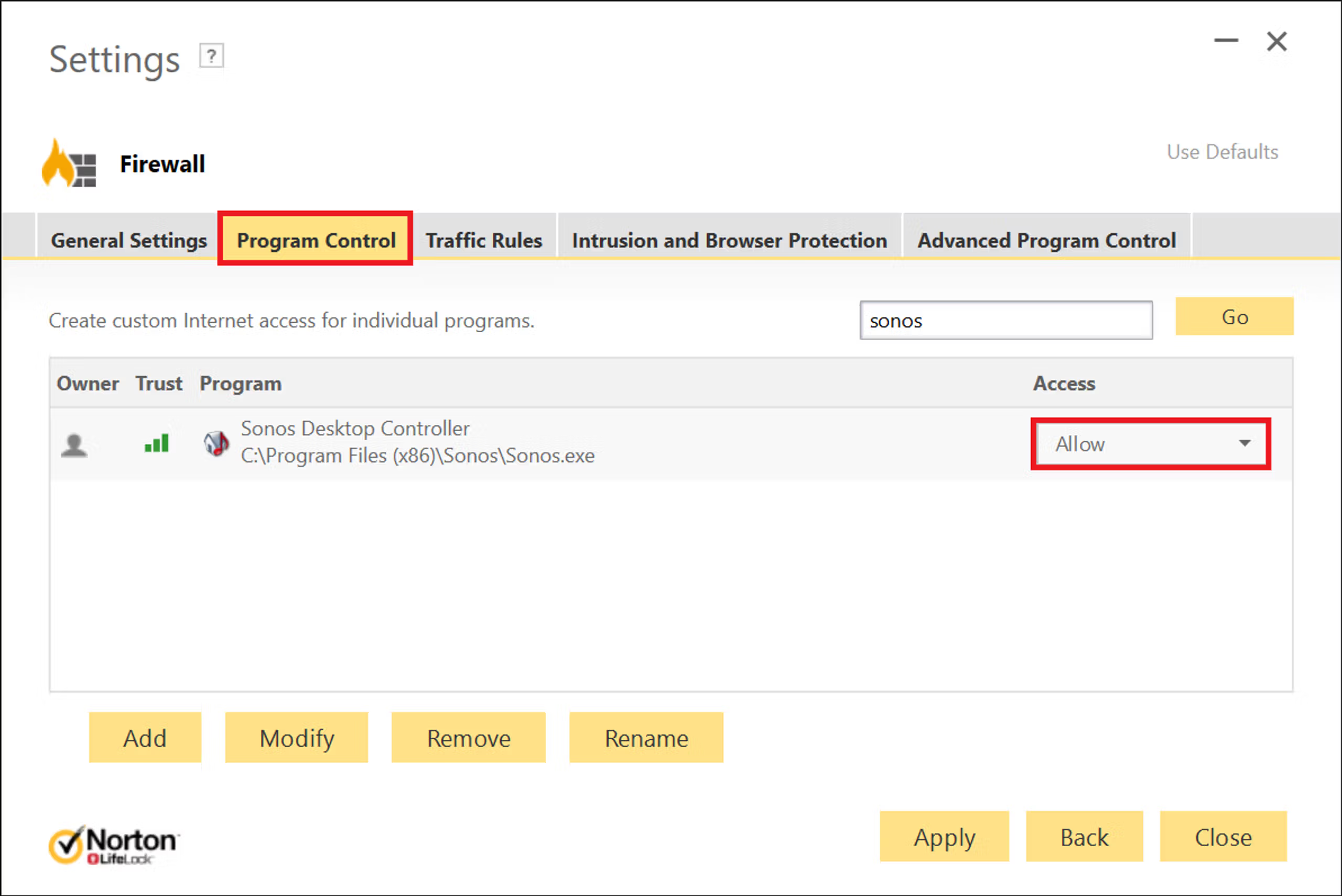
5. Click on the Program Control tab.
- Type Sonos into the search field.
- Set the Access to Allow.
- Click Apply.
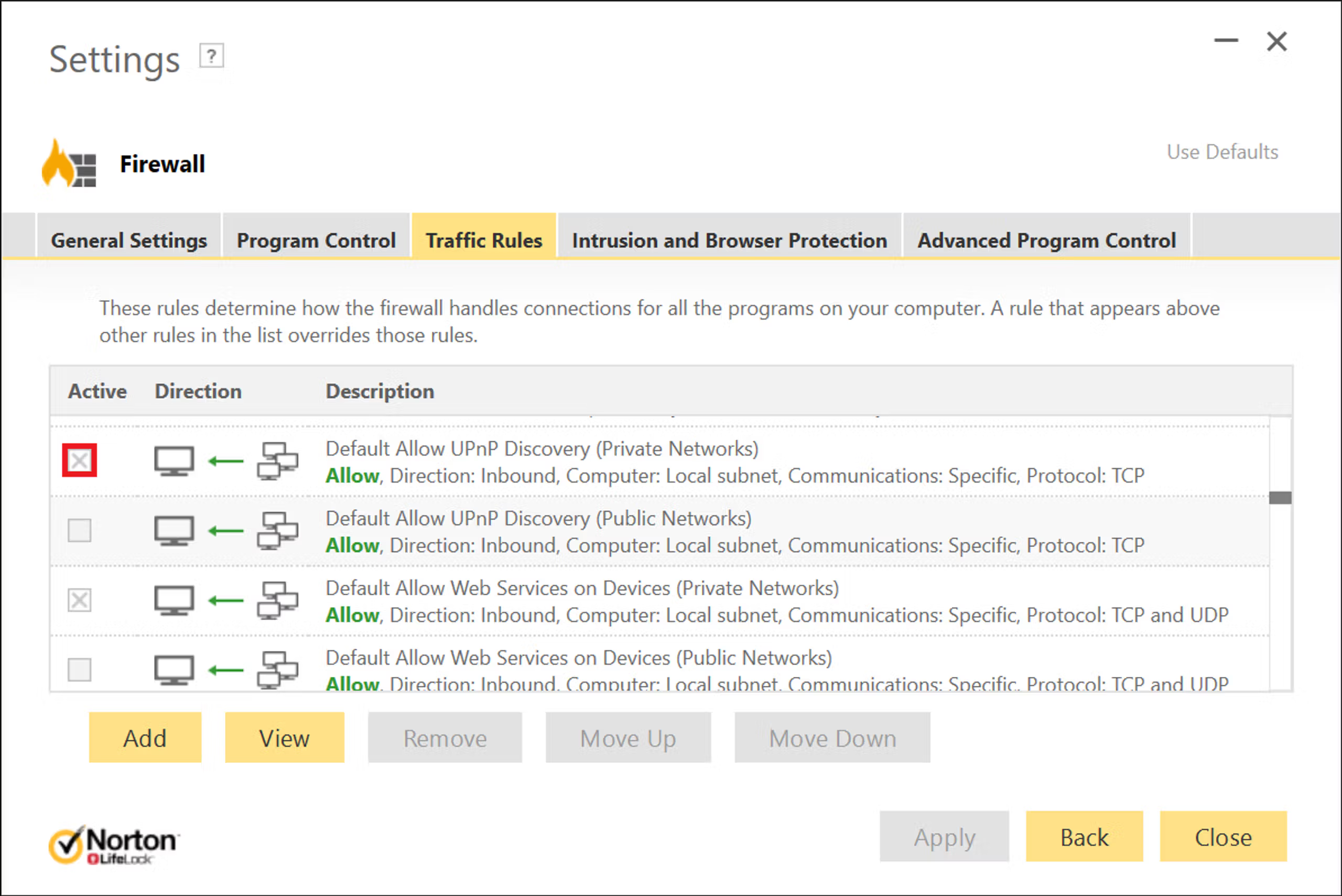
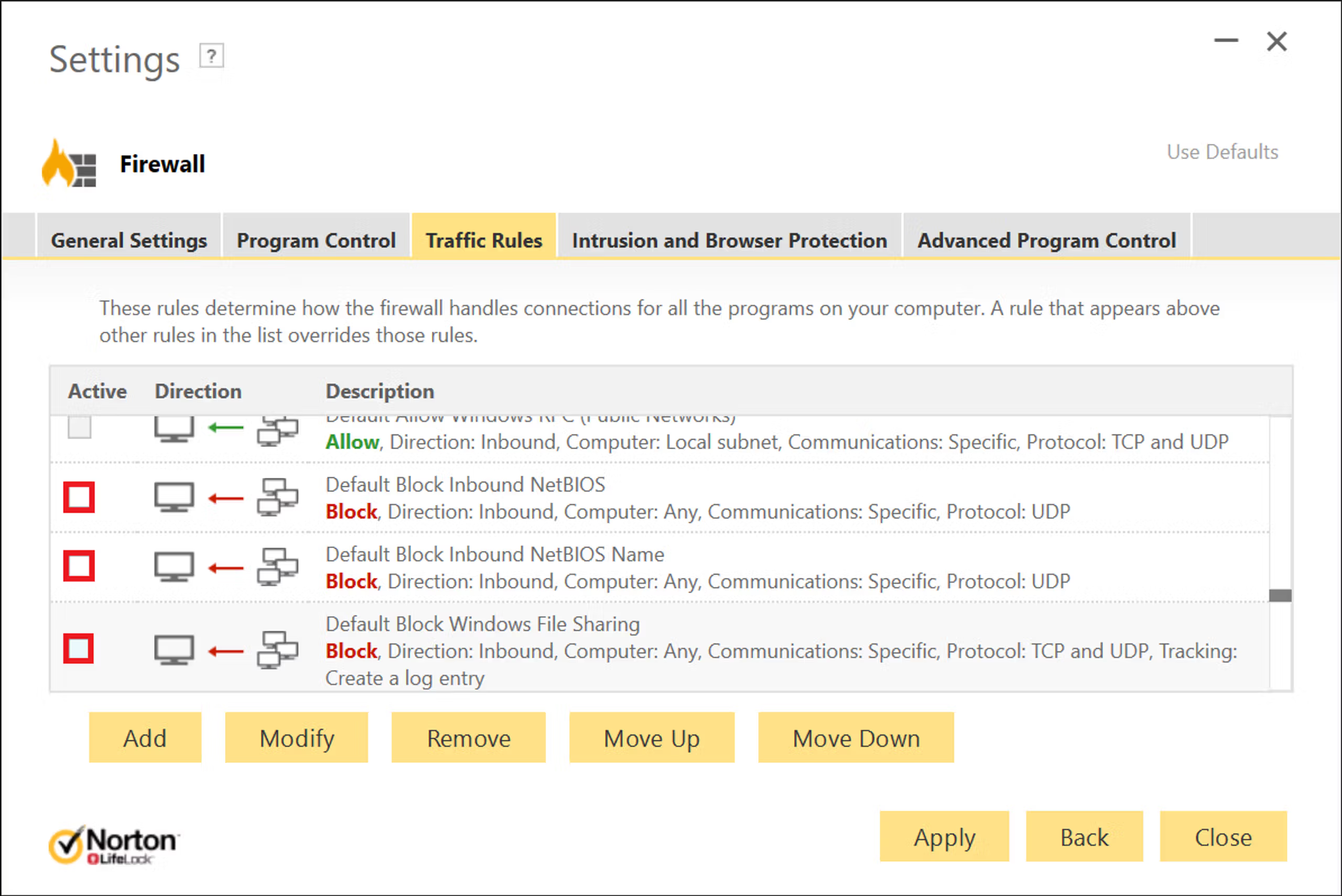
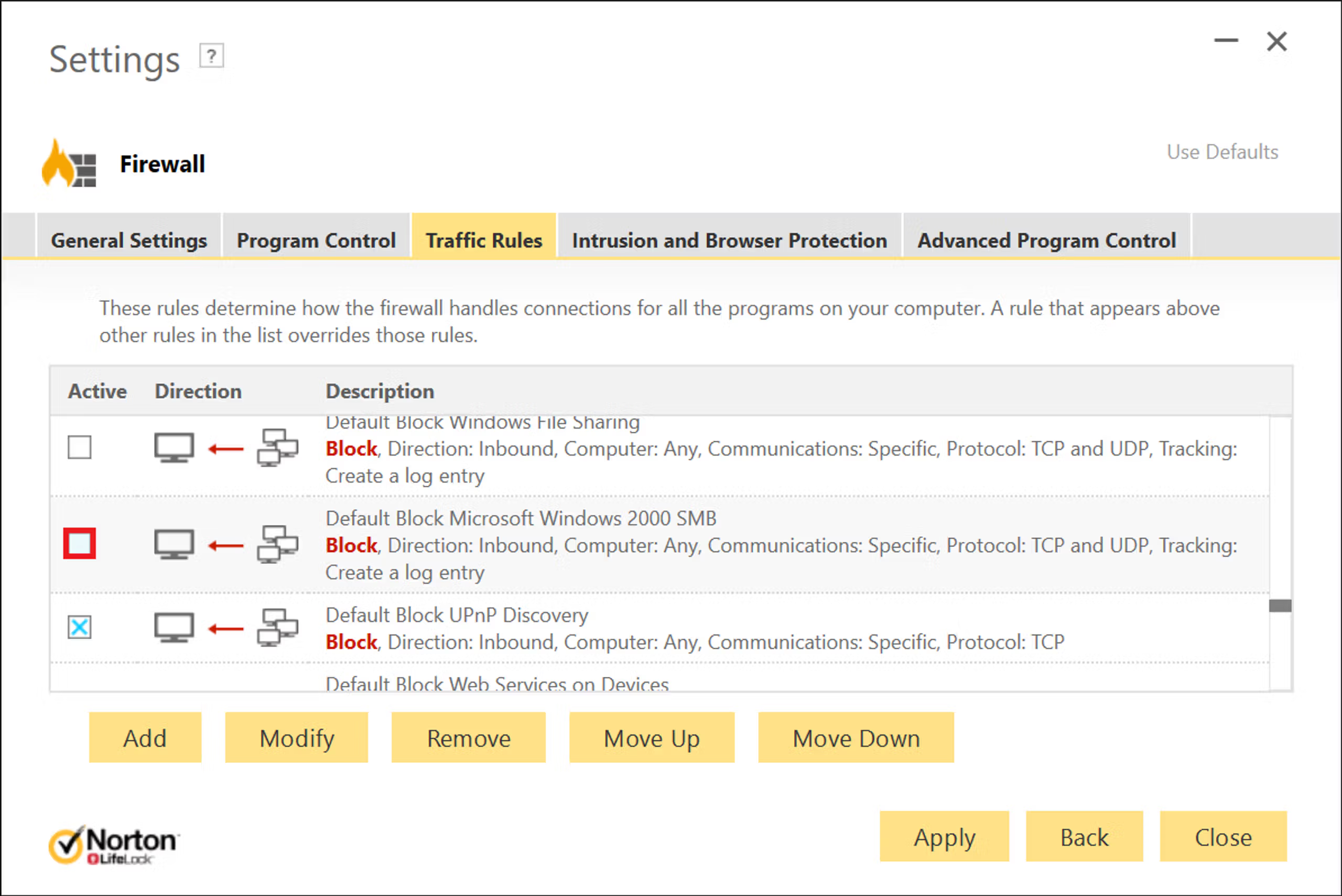
6. Click Traffic Rules.
- Check Default Allow UPnP Discovery (Private Networks)
- Uncheck Block Inbound NetBIOS
- Uncheck Default Block Inbound NetBIOS Name
- Uncheck Default Block Windows File Sharing
- Uncheck Default Block Microsoft Windows 2000 SMB
- Click Apply.
The Norton 360 Firewall is now configured to work with Sonos.


