Choose between a wireless and wired Sonos setup
Sonos can be configured in either a wireless or wired setup. This article will cover the differences between the two setups and provide recommendations for which setup best suits your system and home network. If you are switching between setups, see our article on switching between a wireless and wired setup for more information.
Wireless setup
In a wireless setup, your Sonos products connect to your home’s WiFi network, just like other wireless devices in your home (smartphones, tablets, computers, etc.).
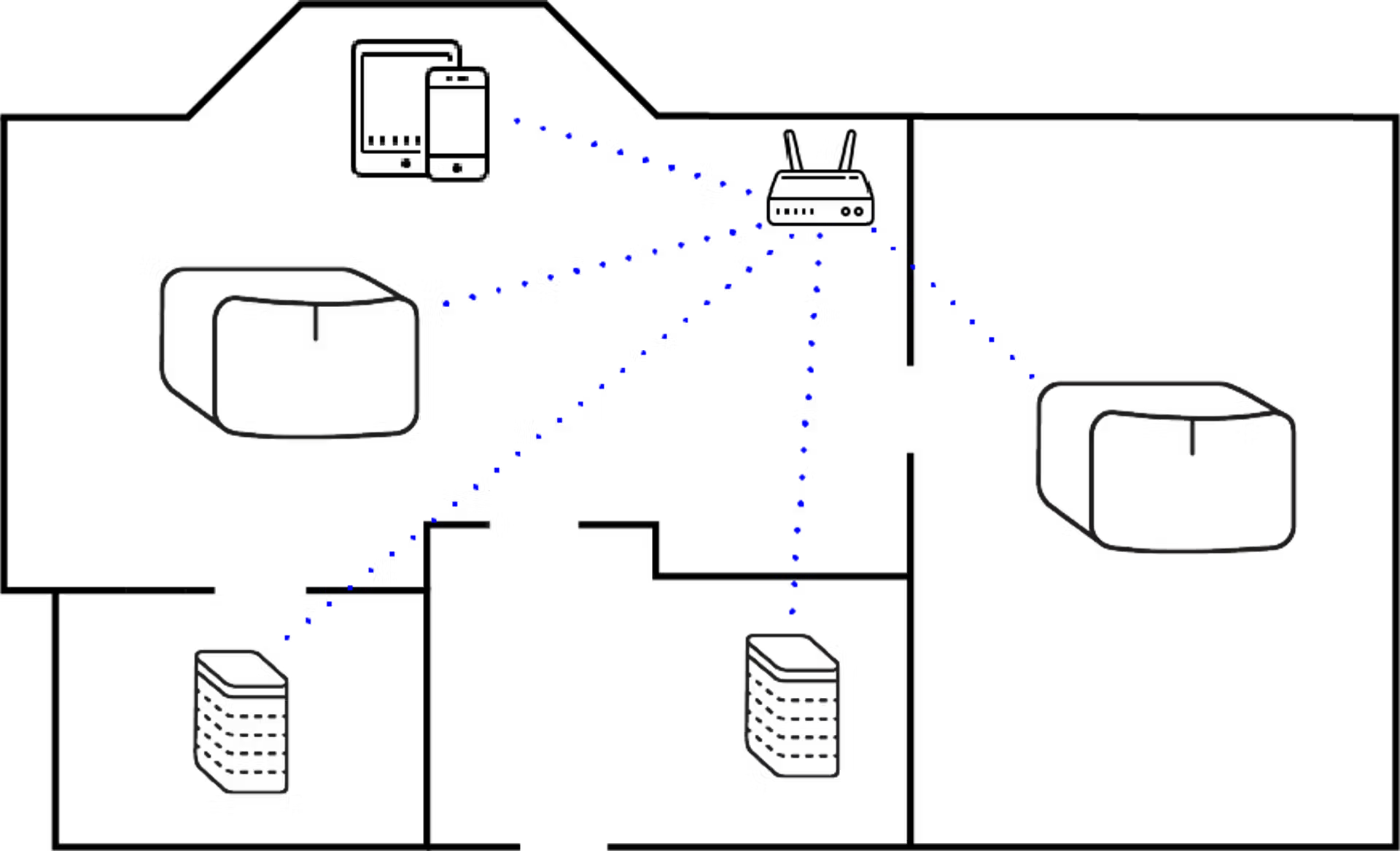
In this wireless Sonos setup, the blue lines show how each wireless device (including Sonos) connects directly to the router’s WiFi network.
When to use a wireless setup
Use a wireless setup if you have a strong WiFi connection that reaches all the rooms where you want Sonos.
Wired setup
In a wired setup, at least one of your Sonos products will stay wired to the router with an Ethernet cable. The wired Sonos product creates a dedicated wireless network specifically for your Sonos system. This dedicated wireless network allows most Sonos products to pass the wireless signal to other Sonos products. This means it’s possible for Sonos to operate in a room that is beyond the reach of your WiFi.
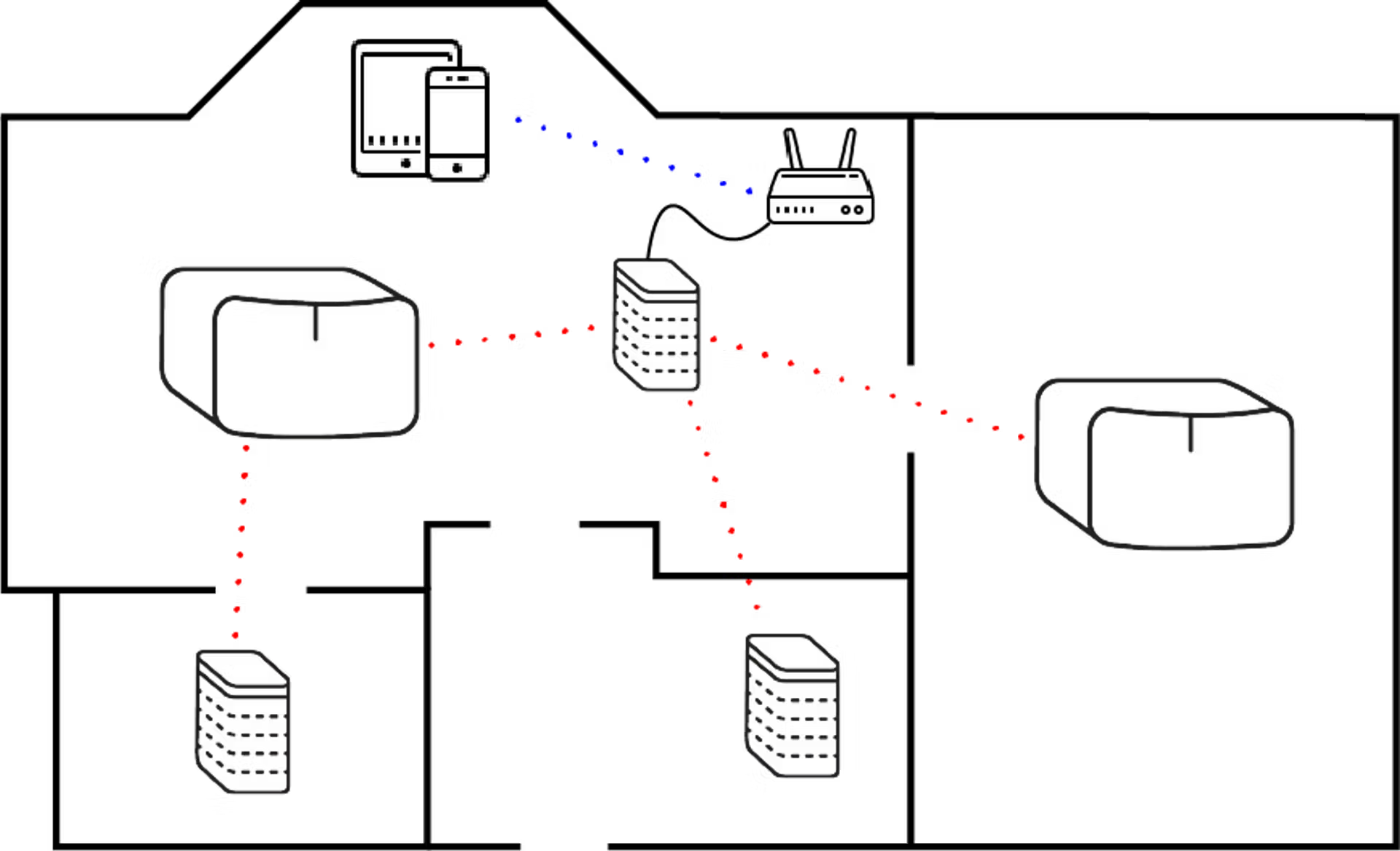
In this wired Sonos setup, a Sonos One is wired to the router with an Ethernet cable. The red lines show the wireless connections between the other Sonos products on the separate, dedicated Sonos wireless network.
When to use a wired setup
Use a wired setup if your home WiFi network is slow, unreliable, does not meet our system requirements, or does not reach all the rooms where you want Sonos. Most Sonos products can use the dedicated Sonos wireless network while in a wired setup, with some exceptions listed below.
Wired setup limitations
Some Sonos products can’t provide, or don’t support, the use of the dedicated Sonos wireless network when wired via Ethernet.
Home theater
Sonos products that are used as home theater surrounds or subwoofers are unable to act as the first-wired product for the dedicated Sonos wireless network.
Products that don’t support the dedicated Sonos wireless network
The following products must either be connected to your home WiFi network in a wireless setup or connected via Ethernet, if supported.
- Arc Ultra
- Era 100
- Era 100 Pro
- Era 100 SL
- Era 300
- Move
- Move 2
- Roam
- Roam 2
- Roam SL
- Sonos Play
- Sub 4
Wired setup without dedicated Sonos wireless network
The Sonos app includes an option to manually enable or disable SonosNet, our dedicated wireless network. With SonosNet disabled, you can connect one or more Sonos products to your router via Ethernet cable while the rest of your system stays connected to your home WiFi. SonosNet can be re-enabled at any time.
When to use this option
This setup is suitable for situations where:
- Your home WiFi is strong, but you want to hardwire specific products for a more stable connection.
- You want the remaining wireless products to continue using your home WiFi directly.
- You want to simplify your network setup and keep more control over your home network configuration
For details on adjusting this setting, see the article to adjust the in-app SonosNet setting.


