Connect Sonos to a new router or WiFi network
Your Sonos system needs updated network information after you’ve changed your WiFi network name, password, or replaced your router. This article will help you connect your Sonos system to a new router or to a new WiFi network.
Sonos app for iOS or Android


You can use the Sonos app to connect supported Sonos products to your new or updated WiFi network. The app will walk you through updating each Sonos product’s WiFi information one by one.
If you’re connecting your Sonos products to a new router, keep them disconnected from ethernet until you’ve gone through the steps below. Once all supported Sonos products are connected to the new router’s WiFi network, you can reconnect any required ethernet cables.
- Open the Sonos app and wait while it searches for your Sonos system.
- When the Sonos app shows “No products found,” go to Settings.
- Select Visit Help Center, then select Update Network.
- Follow the instructions to connect your Sonos products to your new router or WiFi network.
Switch to a wired setup
When wired to a router, some Sonos products can broadcast their own dedicated wireless network that other Sonos products can use.
If you have Sonos products that support this, you can temporarily use your Sonos system in a wired setup as a workaround. You can find instructions on how to switch to a wired setup, as well as a list of products that don’t support this type of setup, in this article.
Sonos S1 Controller app for iOS or Android


If Sonos connects through your WiFi network
If your Sonos system is in a wireless setup, follow the steps below. If you have more than one Sonos product in your system, this process will require you to temporarily connect a Sonos product to your router with an ethernet cable.
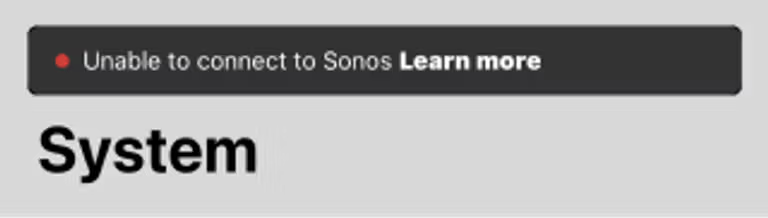
- Open the Sonos S1 Controller app and wait while it searches for your Sonos system.
- When you see the message "Unable to connect to Sonos," select Learn More.
- Select Changed router or Wi-Fi settings?
- Follow the instructions to connect Sonos to your new router or WiFi network.
If some of your Sonos products are missing from your Rooms list after you’ve wired a Sonos product, reboot all missing Sonos products in your household, then go to Settings > System > Network > Wireless Setup to connect them to the WiFi network.


If a Sonos product is wired to your network with an ethernet cable
If your Sonos system is in a wired setup, simply wire your Sonos product to your new router to get connected. Some of your Sonos products may be missing from your Rooms list because they need information from the new router. To fix this, reboot all missing Sonos products in your household.


