Set up your Sonos Move 2
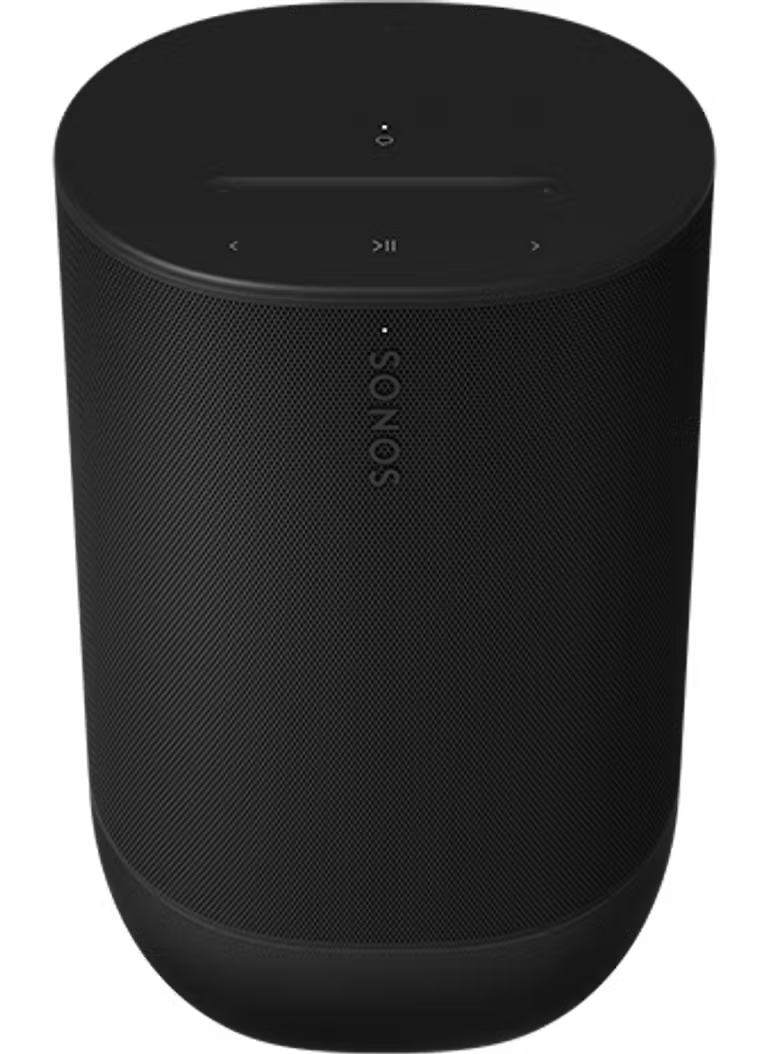
This article will guide you through setting up your Sonos Move 2 on your WiFi network. You can find more information on product features and specs on Move 2’s product page.
Before you start
- Plug the included charging base into power, then place your Move 2 on the charging base to turn it on. Move 2 will show a blinking green light on the front when it's ready to be set up.
- Download the Sonos app for iOS or Android. The app will guide you through the set up process.
- Move 2 must be set up on a WiFi network before it can be used as a Bluetooth speaker.
Set up a new Sonos system with Move 2
- Open the Sonos app for iOS or Android.
- Under Get started with setup, set up a new system by selecting Speaker or component, then create or sign in to your Sonos account.
- Select Add on the pop-up showing your Move 2.
- Follow the steps in the app to set up your Move 2 and add your content services.
Add Move 2 to your existing Sonos system
- Open the Sonos app for iOS or Android.
- Go to the Settings menu and select Add Speaker or Component.
- Follow the steps in the app to add Move 2 to your Sonos system.


Problems during setup?
If your Move 2 is having trouble connecting during setup, check our “Product not found” article for some help.
Additional details
- Once set up and connected to WiFi, you can switch your Move 2 over to Bluetooth mode at any time. See our article on pairing Move 2 with Bluetooth devices for more information.
- Move 2 features a USB-C port on the back which can be used with the Sonos Line-In Adapter or the Sonos Combo Adapter. Both adapters allow you to connect a 3.5mm audio cable to your Move 2 for audio line-in. The Combo Adapter offers an ethernet port for wiring your Move 2 to the network.
- For more information on Move 2 and its features, see our articles about charging your Move 2, bringing your Move 2 outdoors, and automatic Trueplay™.


