Set up your Sonos Play:5 (Gen 1)
This article will guide you through setting up your Play:5 (Gen 1). You can find more information on product features and specs in Play:5 (Gen 1)'s product guide.
Before you start
- Place your Play:5 (Gen 1) in your desired location and connect it to power.
- Download the Sonos S1 Controller app for iOS or Android. The app will guide you through the set up process.
Set up a new Sonos system with Play:5 (Gen 1)
- Open the Sonos S1 Controller app for iOS or Android.
- Select Set up a new system, then create or sign in to your Sonos account.
- Select Continue, then choose Set up products.
- Follow the steps in the app to set up your Play:5 (Gen 1) and add your content services.
Add Play:5 (Gen 1) to your existing Sonos system
- Open the Sonos S1 Controller app for iOS or Android.
- From the Settings tab, select System, then choose Add Product.
- Follow the steps in the app to connect Play:5 (Gen 1) to your Sonos system.


Problems during setup?
If your Play:5 (Gen 1) is having trouble connecting during setup, check our “Product not found” article for some help.
Connect a line-in device
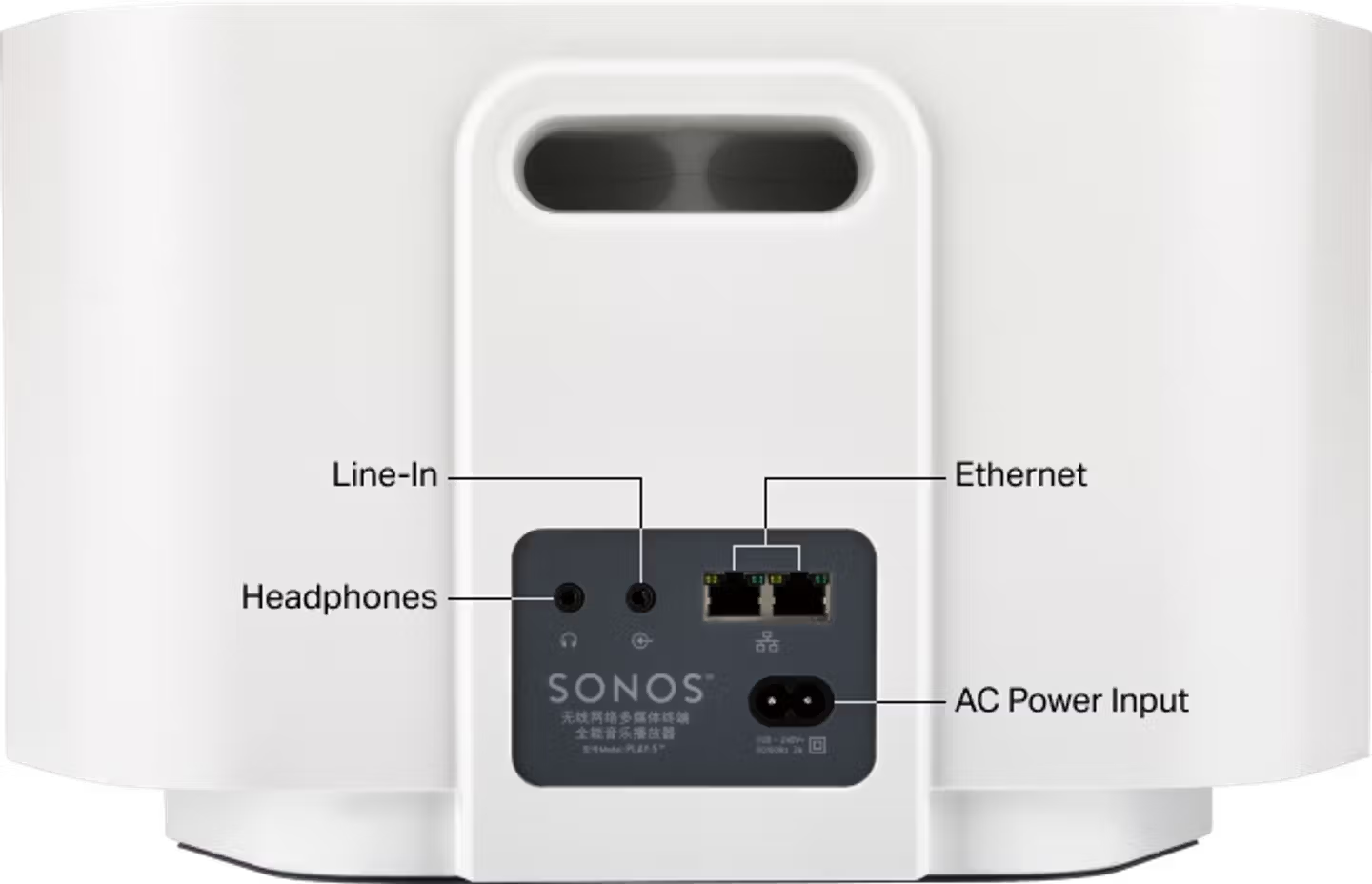
Play:5 (Gen 1) has a 3.5mm input that allows you to connect devices like turntables, mobile devices, and CD players. Simply connect your external audio device to the 3.5mm input on the back of your Play:5 (Gen 1). See our article on using line-in with Sonos for more information.
Connect headphones
Play:5 (Gen 1) has a 3.5mm headphone jack you can use for private listening. Connect your headphones to the 3.5mm headphone jack on the back of your Play:5 (Gen 1) and your Play:5’s built-in speakers will be disabled. You can then use the volume buttons on your Play:5 to adjust the volume.