Google Assistant not working on Sonos
This article provides steps to resolve issues with the Google Assistant failing the setup process, not following commands, not responding at all, or responding with an error.
Before you start
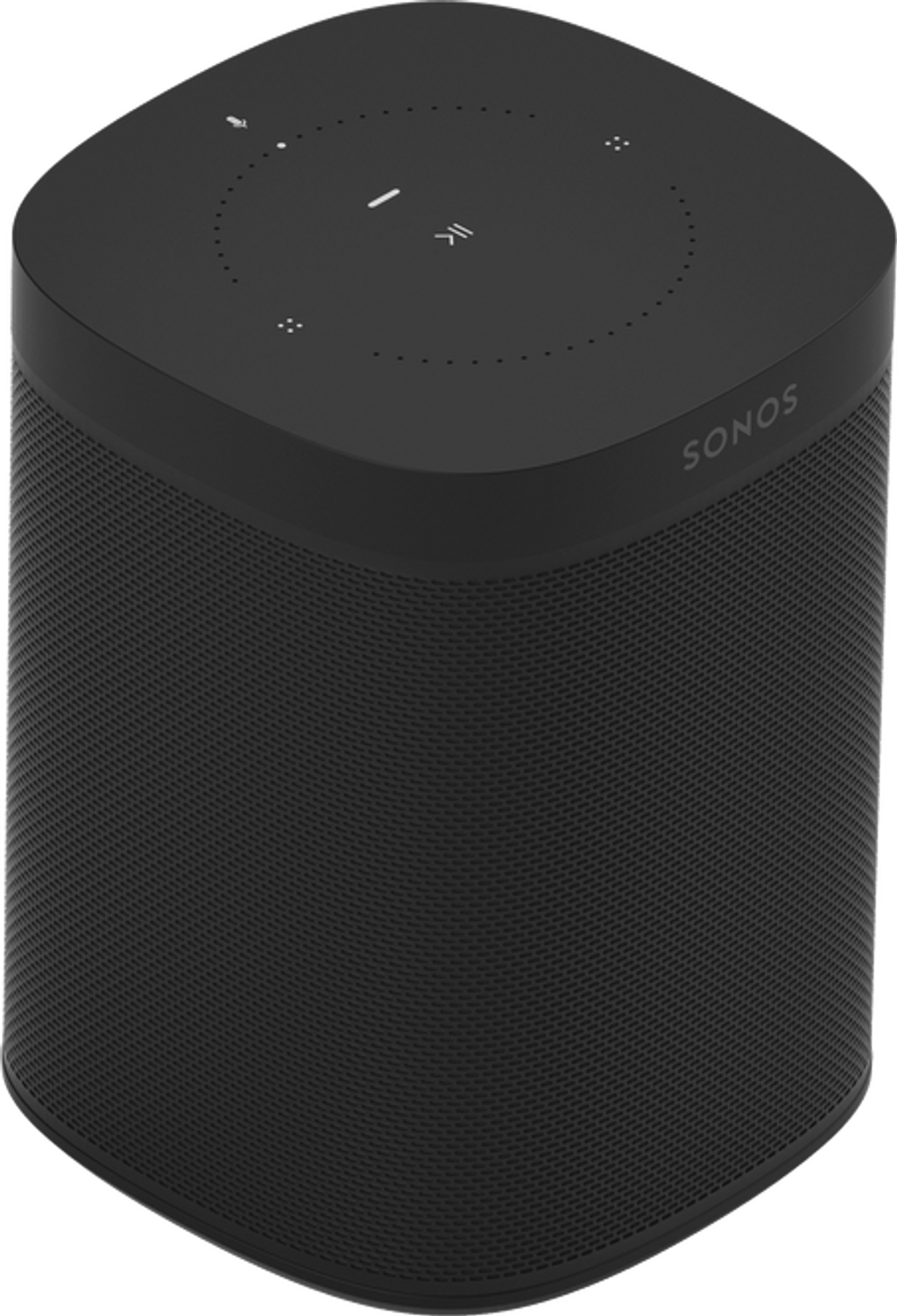
- If your voice-enabled Sonos speaker has a physical microphone switch, make sure it’s switched on. Additionally, check the status light above the microphone button or voice service button. If the light is off, tap the button to re-enable the microphone or the voice service, then try the command again.
- Move the speaker away from walls, other speakers, and sources of background noise to make sure that the Google Assistant can hear you.
- You can check what your Google Assistant heard on http://myactivity.google.com by adding a filter for Assistant. If the Google Assistant isn’t hearing your commands correctly, consider moving your device to reduce loud ambient sound that could impact how well your voice-enabled Sonos speaker (or Google Assistant-enabled product) can hear you.
- A Google account with the Google Assistant can only be used with one Sonos system at a time. If you have a second Sonos system in another location, you’ll need to use a second Google account if you’d like to use the Google Assistant in both places.
- An iOS device is required to troubleshoot this issue.


If you have voice-enabled Sonos speakers
- Remove the Google Assistant from each voice-enabled Sonos speaker.
- Remove all linking attempts from the Google account.
- Open the Google Assistant app on your iOS device and select the Profile icon. Scroll down and select Home Control. Choose Sonos and select Unlink.
- Remove all Sonos connections from the Google account.
- Open the Google Home app and select the Profile icon. Select Manage your Google Account and open Data and Privacy. Scroll down to Third Party Apps and Services and locate Sonos in the provided list. Choose Delete all connections that you have with Sonos and select Confirm.
- Go through the Google Assistant setup process again and re-add the service to your Sonos speakers. Check to make sure that the Google Assistant app is logged into the correct account when setting up.
- Make sure that any content services that you’ve added in the Google Assistant have also been added to Sonos.
- Once completed, try giving the Google Assistant another command.
If you do not have voice-enabled Sonos speakers
- Open the Google Home app for iOS.
- From the Devices tab, select one of your listed Sonos products, then select the Settings icon at the top-right.
- On the Settings screen, select Unlink Sonos. This will open the Add Devices menu where you can select Sonos, then Unlink account.
- After Sonos has been unlinked, set up the Google Assistant again using the Sonos app.
- Make sure that any content services that you’ve added in the Google Assistant have also been added to Sonos.
- Once completed, try giving Sonos a command using your Google Assistant device.